Tips & setup
Saving a synth preset versus saving a project
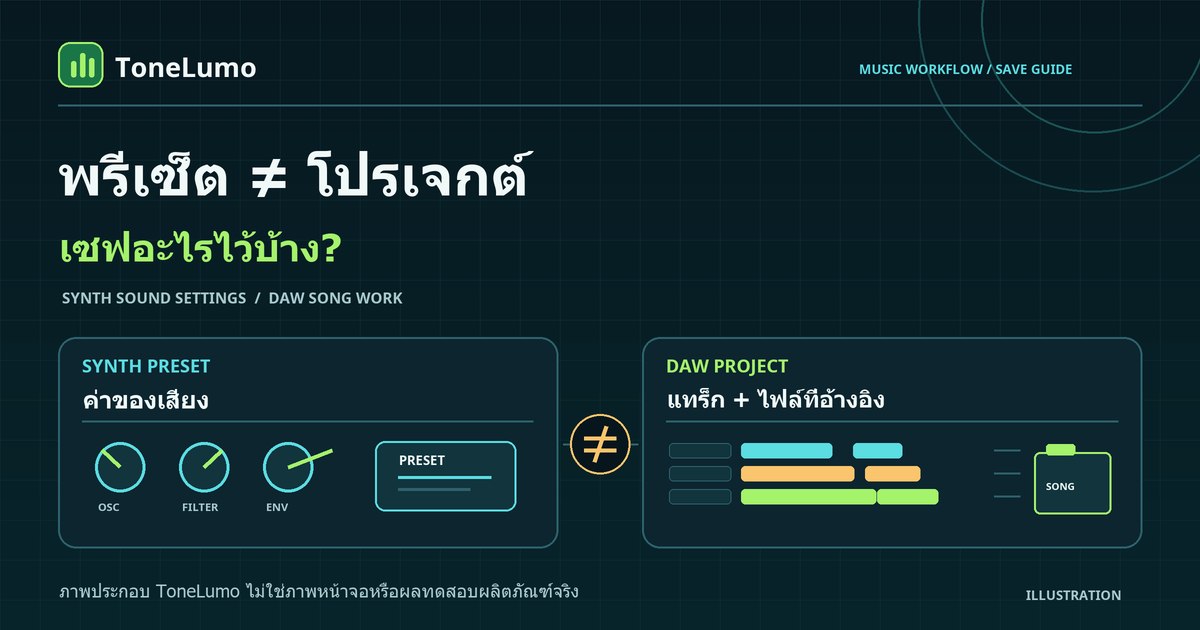
A preset keeps a synth sound available for reuse; a DAW project preserves the wider song. Compare Surge XT patches with Ableton Live Sets and check media before moving computers.
Based on manufacturer documentation. Steps may vary by version.
Short answer: save the thing you want to return to
Save a synth patch or preset when you want to recall a sound in another piece. Save the DAW project when you want to reopen the song's tracks, clips and settings. One song may need both: a reusable sound and an editable arrangement.
This guide uses the official Surge XT and Ableton Live 12 manuals as examples. Other synths and DAWs may handle files differently. It is not a ToneLumo hands-on software test.
Surge XT patch: preserve the sound you designed
Surge XT calls a saved synth sound a patch. Its manual says an edited or unsaved patch shows an asterisk by its name. Select Save in the synth or press Ctrl/Command + S, then give the patch a name and category. The save dialog also offers author, license and comment fields.
After saving, look for the patch under User Patches and try loading it in a new instance. The manual's Open user data folder command shows where user patches live if you need to back them up or move them. A patch file is not the DAW song with its tracks, clip arrangement and all referenced media.
Ableton Live Set: preserve the song structure
Ableton calls its song document a Live Set. The Live 12 manual says File > Save Live Set stores the current Set, including clips and settings. Save Live Set As or Save a Copy creates a separately named or located version, useful for a working version and a checkpoint before major changes.
Distinguish the Set from the Project folder. Ableton uses the Project to organize Sets and related files. Saving a Set does not mean every external audio file has been copied into that folder. A song opening on your current computer is not proof that its media will travel with the Set.
Moving to another computer takes an extra step
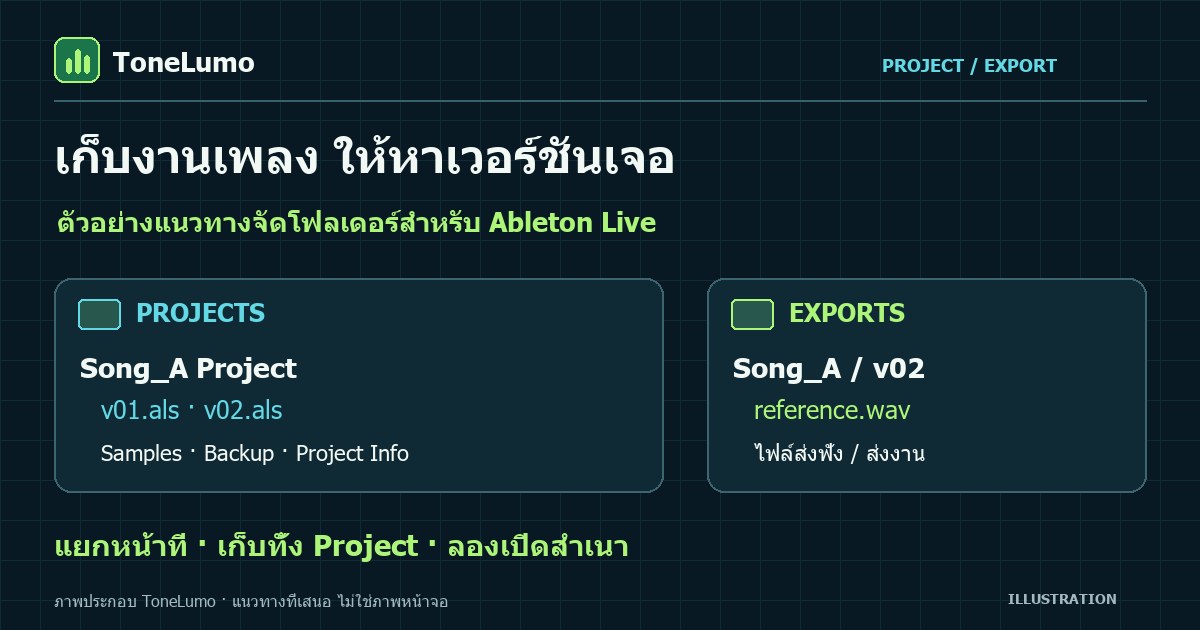
Ableton says Save or Save As keeps references to files used by a Set. For a transfer, save the Set in its own Project first, then use File > Collect All and Save and select the relevant media. According to Ableton, this can copy audio, video and used Max for Live devices into Project subfolders. Transfer the entire Project folder rather than only the .als file.
Collect All and Save cannot copy third-party plug-ins; Ableton says each computer needs those installed separately. Check versions and licenses with their developers, and back up any reusable user patch according to the synth's manual. If the destination lacks a plug-in sound, prepare rendered audio where needed.
A quick check before you close the session
Ask two different questions: 'Can I recall this sound in another song?' and 'Can I reopen and edit this song?' Once both answers are yes, check that referenced media is actually present where you plan to back up or transfer it. Merely seeing a filename in a folder is not a substitute for opening the copy.
Save the patch and load it from the synth's list. Save the Set, close it, then open a copy. Check for missing-media or plug-in warnings and play a short passage using that sound. Keep the original until the copy has been checked.
- Reuse the sound: Save a Surge XT patch and load it from User Patches.
- Edit the song later: Save Live Set or Save As in the intended Project.
- Move computers: Collect All and Save the relevant media, then copy the entire Project.
- Check the result: handle plug-ins and licenses separately, then open a copy.
If you are unsure which files matter
Note your DAW and version, synth name, and goal, such as reusing a sound or moving the whole song. An initial question can use a file list and a redacted warning message. You do not need to send a password, license key or real song file for an initial discussion.
ToneLumo can map the steps to the vendor manuals and agree on the scope and price of remote installation or project-transfer help before starting. Customers purchase software through their own accounts.
Sources and check dates
- Surge XT — User Manual · Checked 2026-11-11
- Ableton Live 12 Manual — Managing Files and Sets · Checked 2026-11-11
- Ableton — Saving Projects · Checked 2026-11-11
- Ableton — Collect All and Save · Checked 2026-11-11