Tips & setup
Sample-rate mismatch: check your DAW and audio interface
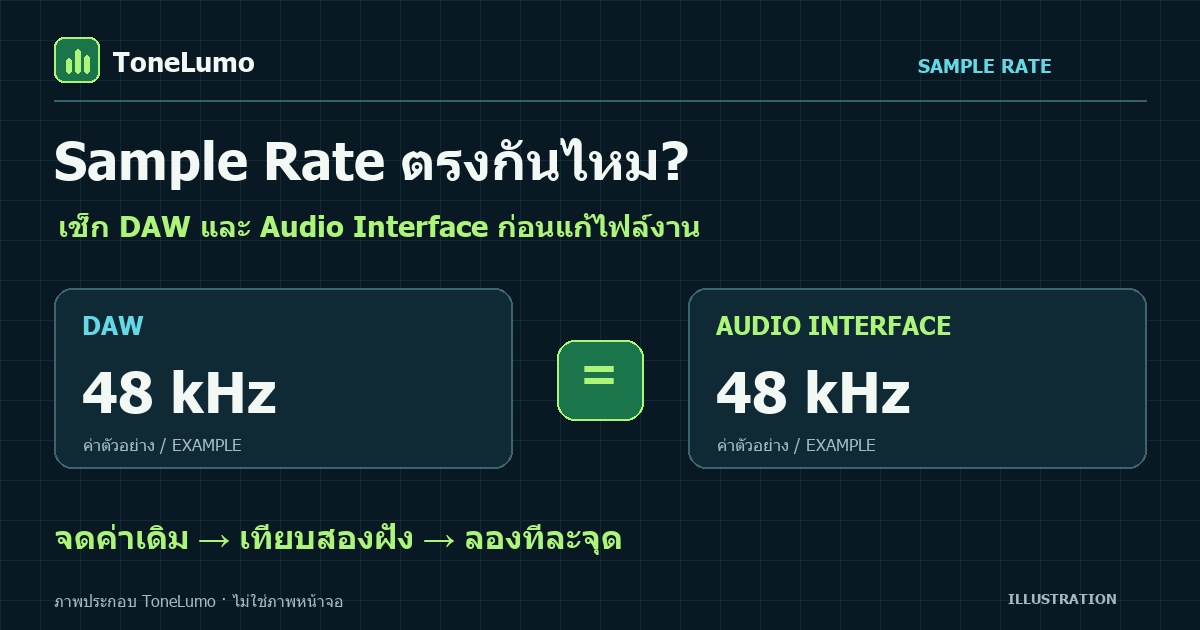
Wrong playback speed or pitch? Use Ableton Live and Focusrite on Windows as examples to compare active settings, preserve the originals, and change one thing at a time.
Based on manufacturer documentation. Steps may vary by version.
Check sample rate before editing the music
Ableton documents cases where Live does not detect an interface’s sample rate correctly, including when another app is using audio. A Set may then play at the wrong speed or pitch. Compare the active settings before assuming the audio files are damaged.
This is a documentation-based guide using Ableton Live and Focusrite on Windows, not a hands-on test. Similar symptoms can have other causes. Do not immediately offset every clip’s tempo or pitch.
Preserve the starting point
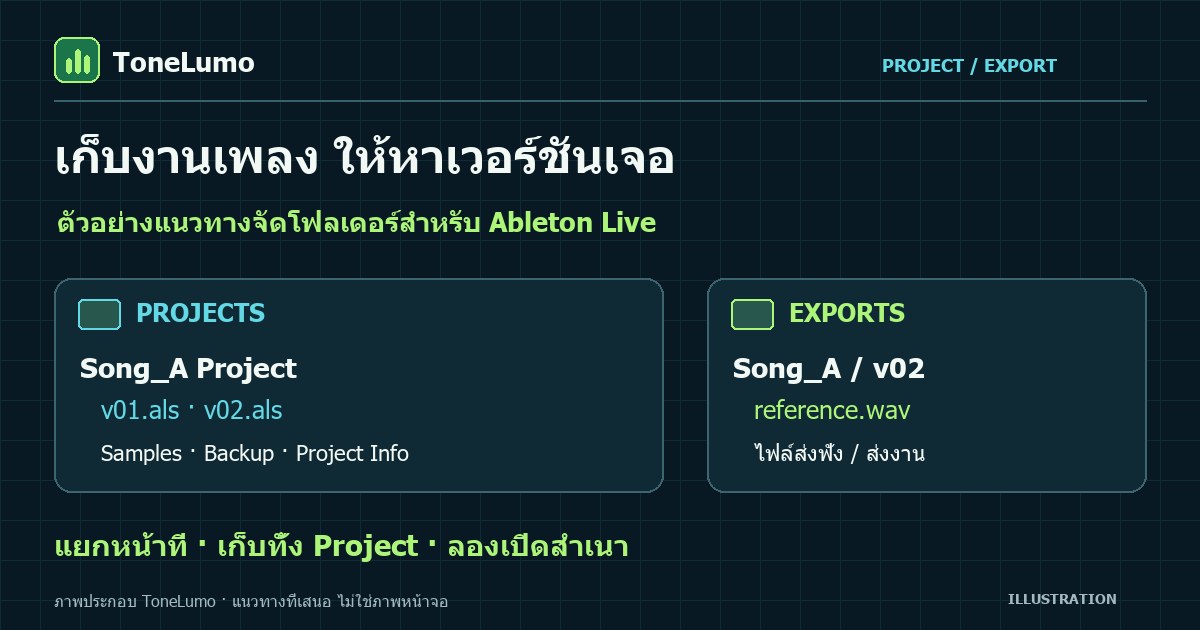
ToneLumo recommends saving the work and making a project copy with its associated files. Note the interface, driver, sample rate and buffer shown in each settings window, plus other open audio apps. This gives you a reference for comparison and restoration.
Label each reading as a DAW or device setting. Read the active value rather than substituting an earlier export setting. Keep the buffer unchanged while investigating sample rate so the comparison remains useful.
Compare Live with the interface control panel
In Live’s Preferences or Settings → Audio, inspect In/Out Sample Rate. Compare it with Hardware Setup or the interface’s own control software. Ableton advises matching the two and notes that relaunching Live can apply changes.
For ASIO on Windows, a greyed-out sample-rate control may mean the device software must handle the change. Ableton’s documented route is Audio → Hardware Setup → the interface control panel. It does not by itself establish a need to reinstall the DAW.
Focusrite example: read the value again after opening the DAW
On Windows, open Focusrite Device Settings from Start or the Focusrite Notifier in the system tray. Focusrite explains that some DAWs and other apps can also control the rate. If it changes unexpectedly, inspect those apps’ settings.
Note the value before opening the DAW and after loading the work. A display of 44.1 kHz on one side and 48 kHz on the other is a reason to investigate the intended working rate. These are illustrative values, not a universal recommendation.
Check a short passage before the real session
Once the intended rate is established, make only the necessary change in the work copy. Replay the affected passage and compare with a known-good reference. For recording, capture and review a short test before a real take. Preserve original audio while the cause is uncertain.
If the values match and the problem remains, stop changing settings at random. Record the warning, interface model, driver version and readings from both windows. Send these through LINE so ToneLumo can assess the scope and agree the price before remote work starts.
Sources and check dates
- Ableton — Set plays at wrong tempo or pitch · Checked 2026-11-22
- Ableton — Changing the buffer size/sample rate of an ASIO audio interface (Windows) · Checked 2026-11-22
- Focusrite — How to change the sample rate and buffer size on Windows · Checked 2026-11-22