Tips & setup
Plug-in missing on Windows? Check Ableton Live and FL Studio
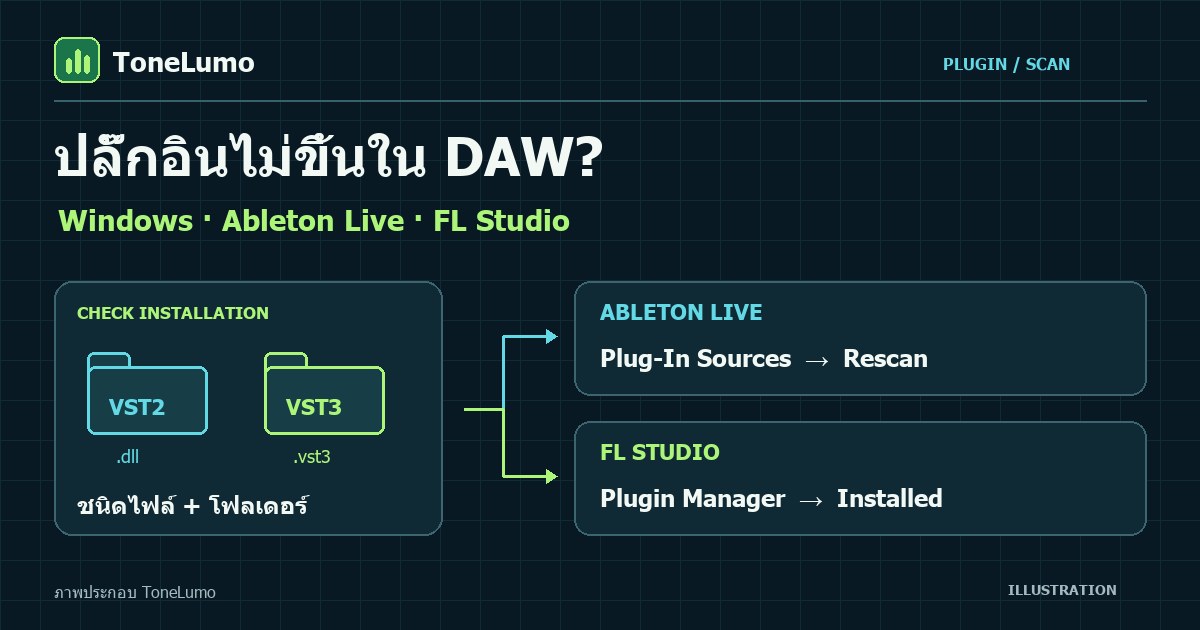
Check the installed plug-in file, the folder your DAW scans, and the Installed list before reinstalling. Separate steps for Live and FL Studio, based on vendor documentation.
Based on manufacturer documentation. Steps may vary by version.
Confirm that the installed format works in your DAW
Note the plug-in name and version, DAW version and Windows version, then compare the developer’s requirements. These Windows examples follow current Ableton and Image-Line documentation; they are not a test of every plug-in.
A working standalone app does not confirm that its DAW plug-in was installed. For current Live on Windows, check for a supported 64-bit VST2 or VST3 installation. Keep standalone apps and sample libraries outside plug-in scan folders.
Check the installation location first
Ableton recommends C:\Program Files\Common Files\VST3 for VST3. For VST2, note the folder selected in the installer. Keep VST2 .dll files separate from VST3 .vst3 files.
If the location is wrong, follow the developer’s installation procedure rather than dragging files between folders. Image-Line also recommends the installer and its default location, adding extra search paths only for a clear reason.
Ableton Live: enable the matching source and wait
Open Settings or Preferences → Plug-Ins → Plug-In Sources. Enable Use VST3 Plug-In System Folder for the standard VST3 location. For VST2, Browse to its installed folder and enable that Custom Folder. Do not point VST2 and VST3 sources at the same location.
If the device remains missing after those checks, Ableton recommends toggling the relevant source off and on, waiting for scanning to finish, then checking the Browser. A further step is a deep rescan: hold Alt and click Rescan. Allow the scan to complete.
FL Studio: check Installed before Favorites
Open Options → File settings → Manage plugins. Run Find installed plugins with Verify plugins enabled to classify instruments and effects. After a plug-in update, the manual recommends Rescan Previously Verified Plugins.
Check Browser → Plugin database → Installed, then Effects → New or Generators → New. Favorites are a separate step. If the device is installed but absent from your usual menu, add it through Plugin Manager or More plugins as documented.
Once it appears, try an empty project
Test one plug-in in an empty project before adding it to existing work. Save, close and reopen. If it fails, distinguish a missing name, a scan error and a device that appears but will not load.
For help, send the DAW and plug-in versions, Windows version and a redacted error screenshot through LINE. ToneLumo assesses the scope and agrees the price before remote work starts.
Sources and check dates
- Ableton — Using VST plug-ins on Windows · Checked 2026-11-20
- Ableton — VST/AU plug-in doesn't appear in Live's Browser · Checked 2026-11-20
- Image-Line — Installing Plugins · Checked 2026-11-20
- Ableton — Plug-ins Tips and Troubleshooting · Checked 2026-11-20