Plugins & reviews
Moving computers? Check your plugin licence before reinstalling
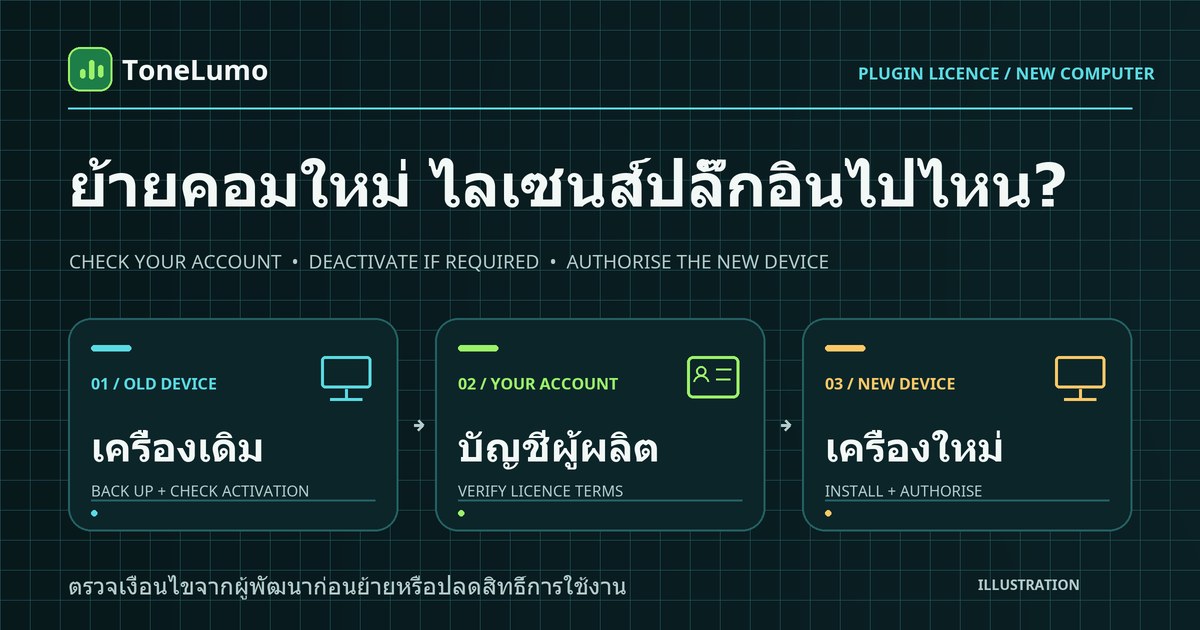
Find the account and activation location before moving a plugin. iLok, Arturia and Native Instruments use different steps; do not assume you need to buy it again.
Based on manufacturer documentation. Steps may vary by version.
Short answer: find the account and activation location
An authorization warning on a new computer does not automatically mean another purchase is needed. Write down the plugin, publisher and account that holds the product, then check whether its licence is activated on a computer, USB device or Cloud location. Recovery depends on the publisher and licence type.
This guide uses iLok, Arturia and Native Instruments documentation as examples, not one rule for every brand. Keep a copy of a project and note the plugin version before moving. Licence activation and transferring your music files are separate jobs.
1. If the old computer works, follow that licence system
For a licence activated to the old computer in iLok License Manager, sign in there and deactivate it back to your account, then activate it on the new computer. Some products permit iLok USB or Cloud instead of a computer; check that licence's Valid Locations. Moving an activation is different from transferring ownership to another person.
For Arturia, check the Arturia Software Center (ASC). Its Deactivate All command affects every Arturia licence activated on that computer, so read the confirmation before using it. Activate the products you need on the new machine through ASC as the publisher directs.
Native Instruments documents a different route: if a product has reached its permitted installation limit, uninstall it from an old computer and sign in to Native Access on the new one with the same NI account. Do not substitute that NI uninstall step for iLok or Arturia deactivation.
2. If the old computer is inaccessible, use the publisher's recovery route
Arturia documents a website route when you cannot access the old computer: sign in, open My Products, inspect the activated machines in the product details and choose the old activation to remove as instructed.
For an iLok licence tied to an inaccessible host computer, request a host reset from the plugin publisher. Supported iLok License Manager versions can submit a Report as Unusable request, but the publisher decides whether to approve it; PACE/iLok cannot approve the reset on its behalf. Do not plan around immediate recovery.
Native Instruments says that if the old computer is broken and you cannot uninstall its products, you can proceed with activation on the new computer under your licence agreement. Check the current terms and product details for your account.
3. Install on the new machine and open a project copy
Get the installer and licence manager from the publisher's official site. The account owner should sign in personally, then activate only the products needed. If you use several accounts, confirm which one actually shows the product before entering another serial or buying again.
Install a version compatible with the new operating system and DAW. Open a copy of one project to check that the plugin loads and its settings return. Missing sounds or presets may be a library or project-file issue separate from the licence. Keep the old machine and project copy until this check is complete.
What can ToneLumo help with?
Send the plugin and publisher names, old and new operating systems, DAW name and an error screenshot with private details hidden. We can help distinguish account, activation, installer and project issues, then agree on the remote-work scope and price before starting.
The account owner signs in and completes verification personally. Do not send passwords, one-time codes or licence keys in chat for an initial assessment. We cannot approve a publisher's licence reset.
Sources and check dates
- iLok — Your Licenses FAQ · Checked 2026-10-27
- Arturia — How to deactivate/retrieve Software Licenses activation · Checked 2026-10-27
- Native Instruments — Installing Products on a New Computer · Checked 2026-10-27