Tips & setup
Recording computer audio with loopback: check mode and sources
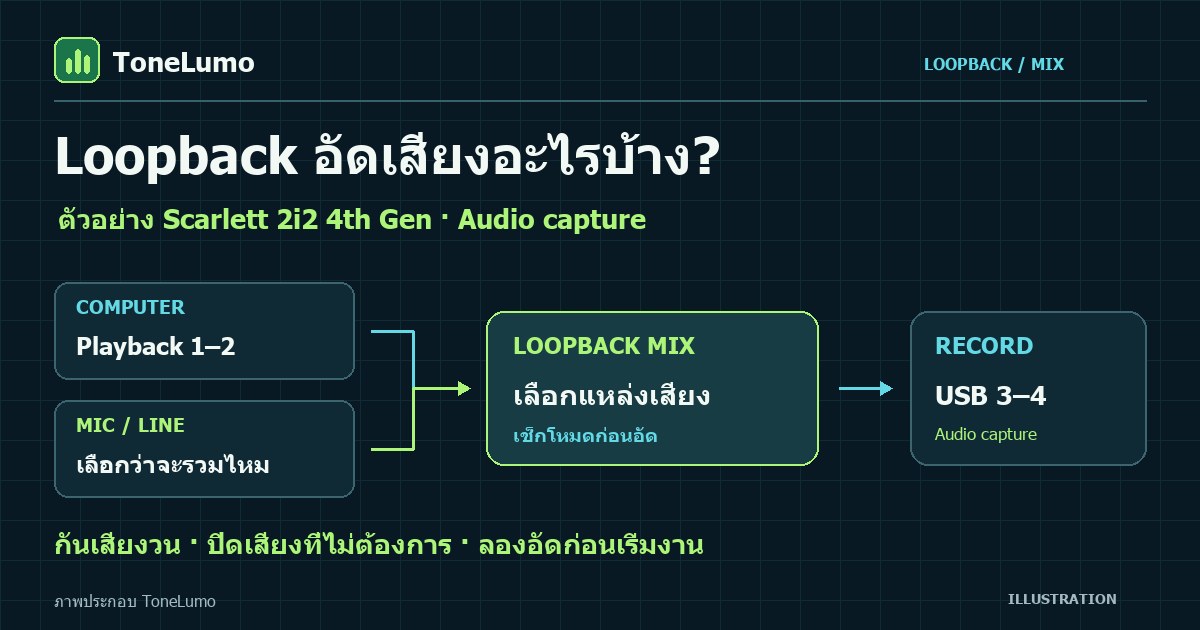
A Scarlett 2i2 4th Gen example: check the loopback destination, choose the sources in its mix, and keep feedback and private audio out of your recording.
Based on manufacturer documentation. Steps may vary by version.
Start with the exact audio interface model
Loopback returns computer audio as a recording input without a physical output-to-input cable. This guide uses Scarlett 2i2 4th Gen and Focusrite Control 2 documentation as an example; it is not a hands-on device test.
Check the generation as well as the model. Focusrite lists Scarlett 4th Gen as supporting loopback, while Solo and 2i2 3rd Gen are excluded. The name 2i2 alone does not establish support.
The loopback mode changes the channels an app receives
In Focusrite Control 2, check Settings → Device → Loopback modes. Audio capture sends analogue inputs plus software playback to USB 3–4. Video call sends an input mix to USB 1–2 without software playback. Stream sends inputs plus software playback to USB 1–2.
For this DAW recording example, check Audio capture and select loopback inputs 3–4 on the recording track. Verify Routed to as well. An app without individual input selection may not expose channels in the same way as a DAW.
Choose the sources before recording
Open Mixer → Loopback and adjust the sources you want in that mix. Analogue channels come from the interface’s microphone, instrument or line inputs. Playback 1–2 is the computer’s main playback feed.
Watch the meters and use a short, non-private test sound. For computer audio alone, check that the microphone is not unintentionally included. These are ToneLumo’s suggested preparation checks, not a report of testing on your device.
Keep the return from feeding itself
If the receiving track returns its audio to the playback feed being captured, a feedback loop can result. Focusrite instructs users to mute loopback channels in the recording app, or set their output to none where available.
Start at a low listening level in a separate test session. Stop if the level surges or audio repeats, then inspect the track output and selected mix before continuing.
Check private audio before recording or streaming
A shared computer playback feed may include notifications and other apps. Close unused apps, silence relevant notifications, and record and review a short test before the real session. The input label Loopback does not guarantee capture of only your intended app.
Let other participants know before recording a conversation, and review files before sharing. For setup help, send the exact audio interface model, Focusrite Control 2 version and recording app through LINE. ToneLumo assesses the scope and agrees the price before remote work starts.
Sources and check dates
- Focusrite — How to use Loopback in Focusrite Control 2 · Checked 2026-11-21
- Focusrite — Using Focusrite Control 2 with your Scarlett 2i2 4th Gen · Checked 2026-11-21
- Focusrite — Which Focusrite interfaces feature Loopback? · Checked 2026-11-21
- Focusrite — Scarlett 2i2 4th Gen Specifications · Checked 2026-11-21