Tips & setup
Check an Audio Interface Driver Version: Scarlett 2i2 4th Gen on Windows
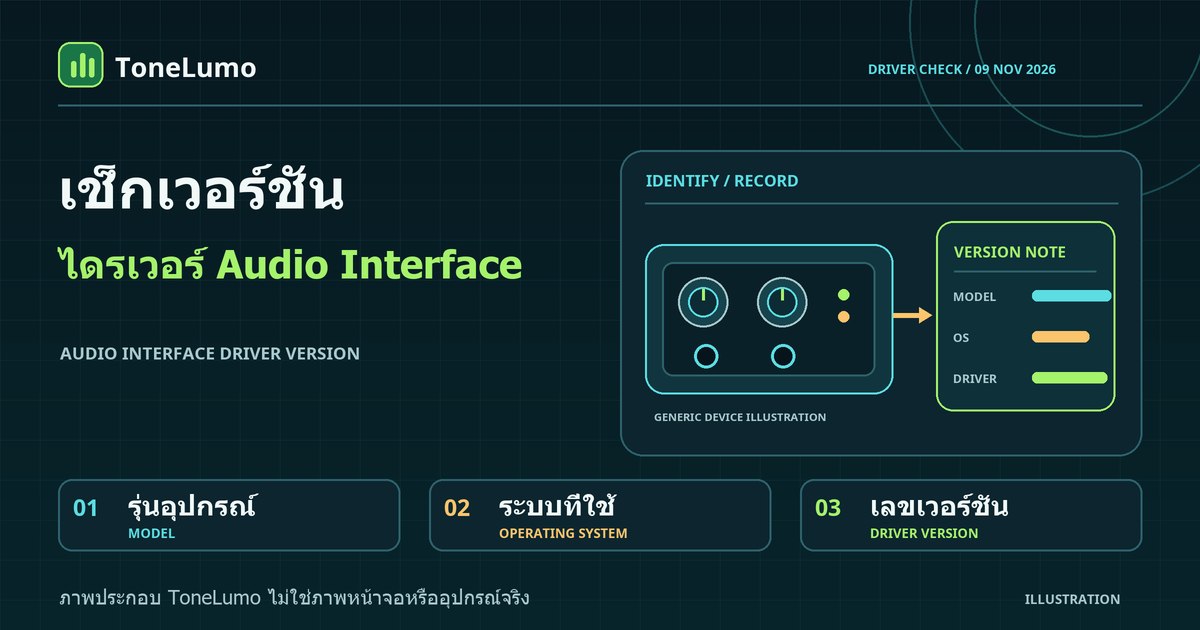
Read the installed driver number in Focusrite Settings, check its provider in Device Manager, and compare the exact interface model with official downloads.
Based on manufacturer documentation. Steps may vary by version.
A Scarlett 2i2 4th Gen on Windows is the example
An audio interface setup can expose several version numbers: the Windows audio driver, the Focusrite Control 2 application, and firmware inside the device. They are different components and need not share a number. An app version alone does not show which driver Windows is using.
The steps here come from Focusrite documentation for its USB interfaces on Windows. The exact menu example is a Scarlett 2i2 4th Gen. Do not apply those menu names to every brand or to macOS. This is guidance from vendor documents, not a ToneLumo hands-on test of the hardware.
Record the complete model before looking up a number
Write down the product name and generation from the unit, such as Scarlett 2i2 4th Gen, plus your Windows version and computer architecture. Also note the audio device selected in your DAW. The words Scarlett and Windows alone may lead you to compare the wrong software package.
If audio is failing, record the current symptom and exact error before changing several settings. A serial number, password or license key is unnecessary for an initial support question.
Read Driver version from the Focusrite tray icon
Focusrite's Windows instructions are specific: open the System Tray, right-click the Focusrite icon and choose the Settings item named for your interface. Its example label is “Scarlett 2i2 4th Gen settings”. Read “Driver version” under “Driver” and record the number your own computer displays.
The vendor's pictures show its example system. Icon position and menu names may differ by device and installed software. If you cannot find the icon, do not conclude immediately that no driver is installed; check the Windows device entry next.
- Example device: Scarlett 2i2 4th Gen, not every 2i2 generation.
- Path: Focusrite icon > [interface name] settings > Driver > Driver version.
- Record the number and date you actually see, not a number from an illustration or this guide.
Cross-check the assigned provider in Device Manager
Focusrite says to open Control Panel > Device Manager > Sound, video and game controllers, open the interface entry and inspect the Driver tab. In its example, a Driver Provider of Microsoft and a version beginning with 10 identify the Microsoft class driver. That is not proof that Focusrite ASIO is available to your recording software.
Focusrite says “Focusrite USB Audio” should appear in that category when its driver is installed. Device Manager therefore helps explain why basic Windows playback can work while the intended Focusrite recording driver is missing or not selected. Hearing system audio alone does not establish that the DAW's ASIO path is ready.
Compare the exact model and OS on the official downloads page
Follow the manufacturer link to downloads.focusrite.com, choose the exact product and operating system, and read that product's download notes. Focusrite lists Scarlett 4th Gen under Focusrite Control 2 on Windows. Installing that control software includes the driver, and its installation guide calls for a restart when installation finishes.
Focusrite Control 2 can prompt for a newer driver when one is available. As the latest number can change, this page does not hard-code a supposedly current driver version. Review supported systems and record the working state before updating during an important project. Device firmware is a separate component addressed by Focusrite's own update guidance.
If the readings disagree, keep the evidence before changing software
A compact note could read: “Scarlett 2i2 4th Gen / Windows 11 / Driver version: [your number] / Driver Provider: [your provider] / DAW device: [selected name] / Symptom: [error]”. It helps distinguish a model mismatch, a different assigned driver and a DAW setting problem.
If the interface is absent in Device Manager or the package name does not match your model, stop comparing version numbers from another generation. Return to Focusrite's official downloads and installer instructions for your exact model. Avoid blind uninstall or reinstall attempts. If you want ToneLumo to help plan the checks, share only a note with private details removed on LINE. Remote scope and price are agreed before work starts.
Sources and check dates
- Focusrite — How do I check I have the latest USB driver version? · Checked 2026-11-09
- Focusrite — Are USB interfaces Plug and Play on Windows? · Checked 2026-11-09
- Focusrite — How to install Focusrite drivers on Windows · Checked 2026-11-09
- Focusrite — Checking your interface firmware · Checked 2026-11-09