Plugins & reviews
VST3, AU, AAX or CLAP: Which Plugin Installer Boxes Should You Select?
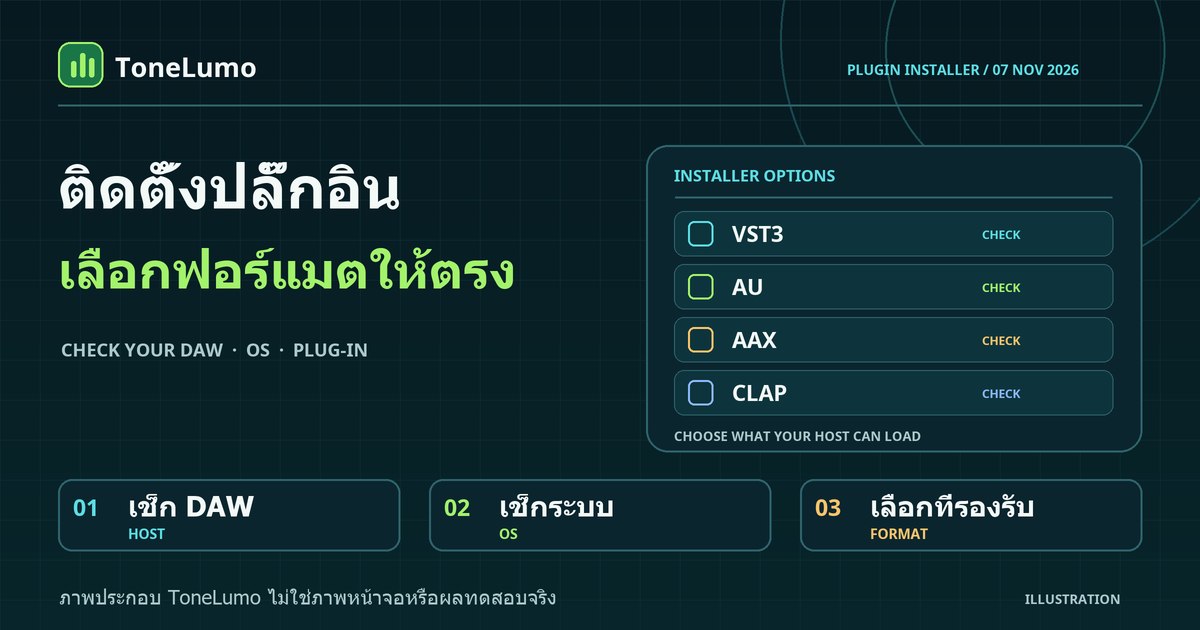
Choose plug-in formats by DAW, operating system and existing projects, then check the installed plug-in without assuming one format replaces another.
Based on manufacturer documentation. Steps may vary by version.
Start with the host, not the number of checkboxes
VST3, AU, AAX and CLAP are plug-in formats for host applications, not sound-quality grades. Select the formats supported by your DAW on your operating system and version, then confirm the particular plug-in's requirements with its developer. An installer offering four boxes is not a reason to select all four.
If an existing project already uses this plug-in, record its current format before installing or updating it. Do not assume that switching AU to VST3, or VST2 to VST3, will make the project find the new variant and restore its settings. This guide draws on manufacturers' documentation; it is not a hands-on test of every plug-in.
Four DAW examples for the installer screen
Ableton Live on Windows supports 64-bit VST2 and VST3; AU is not a Windows option. On macOS, Live supports AU, VST2 and VST3. Ableton says there is no single correct format for Live. For a new Windows project, a compatible VST3 offered by the developer fits Live without installing an AU variant.
Logic Pro for Mac uses third-party Audio Units, so check the AU option and the developer's Logic/macOS compatibility information. For Pro Tools 12 and later, Avid specifies 64-bit AAX plug-ins; a VST3-only download does not meet that requirement.
FL Studio's manual covers installing AU, CLAP and VST. Choose only formats supported by your FL Studio release and operating system. For an FL Studio project shared between Mac and Windows, Image-Line instructs users of third-party plug-ins to use VST for project compatibility. That is FL Studio-specific guidance; it does not mean every DAW supports CLAP or that the same plug-in binary runs on both systems.
- Live on Windows: check 64-bit VST3 or VST2 and your Live version.
- Live on Mac: choose AU or VST to match the project; for Windows sharing, consider VST and install the same plug-in version on both computers.
- Logic Pro on Mac: check AU and the developer's compatibility list.
- Pro Tools 12+: check 64-bit AAX; for FL Studio, check the formats documented for your version and system.
What to leave unchecked, and what not to skip
If you use one DAW, you can skip formats that host cannot use, such as AU on Windows or AAX when you do not use Pro Tools. Keep a needed VST2 variant for an older project until you have confirmed that the project reopens correctly. Do not remove it merely because a VST3 with the same product name is available.
Some installers list a standalone app, presets, sample libraries and a license manager separately from VST/AU/AAX/CLAP. Those components serve different purposes. Read the developer's explanation before deselecting them, especially if an instrument needs its library. Do not place sample content in a plug-in binary folder; Ableton recommends using the manufacturer's installer for preset and library locations.
Use the right location, then find it in the DAW
Download the installer from the developer and start with its default location. For Live on Windows, Ableton lists C:\Program Files\Common Files\VST3 as the usual VST3 system folder. VST2 may ask you to choose a folder; record it and configure Live to scan that folder. Do not mix VST3 files into a VST2 folder.
After installation, enable the installed source in Live's Plug-In Sources. In FL Studio, open Plugin Manager and run its Verify plugins scan. If the plug-in does not appear, check 64-bit support, DAW version, scan locations and the developer's requirements before reinstalling repeatedly. Seeing a name in the browser is only the first check: add it to a copy of a small project, save, close and reopen to confirm its sound and settings return.
Existing projects and transfers need format continuity
Ableton recommends using one format for every instance of a given plug-in within a Set. AU plug-ins cannot be used on Windows. For a Live Set shared between Mac and Windows, use VST and make sure both computers have the same plug-in version. Matching the VST label alone does not guarantee operating-system, license or sample-library compatibility.
Before an update or removing installer options, back up the project and note the plug-in names and formats it uses. Open a copy on the destination computer. If a plug-in is missing, avoid overwriting the original until you know whether the format, version, authorization or sample library is missing.
Ask ToneLumo to review your installer choices
Send your DAW name and version, Windows or macOS version, a link to the developer's plug-in page, and whether this is a new or existing project. We can compare the installer options with the manuals and plan a post-install check. We agree the scope and price for remote work before starting. You purchase and use the software through your own account; you need not send passwords or private song files to ask.
Sources and check dates
- Ableton — Using AU and VST plug-ins on macOS · Checked 2026-11-07
- Ableton — Using VST plug-ins on Windows · Checked 2026-11-07
- Apple Support — Where are third-party Audio Units plug-ins installed on Mac? · Checked 2026-11-07
- Avid — Pro Tools Plugin Compatibility · Checked 2026-11-07
- Image-Line — Installing Plugins · Checked 2026-11-07