Tips & setup
Keep audio settings you can restore later
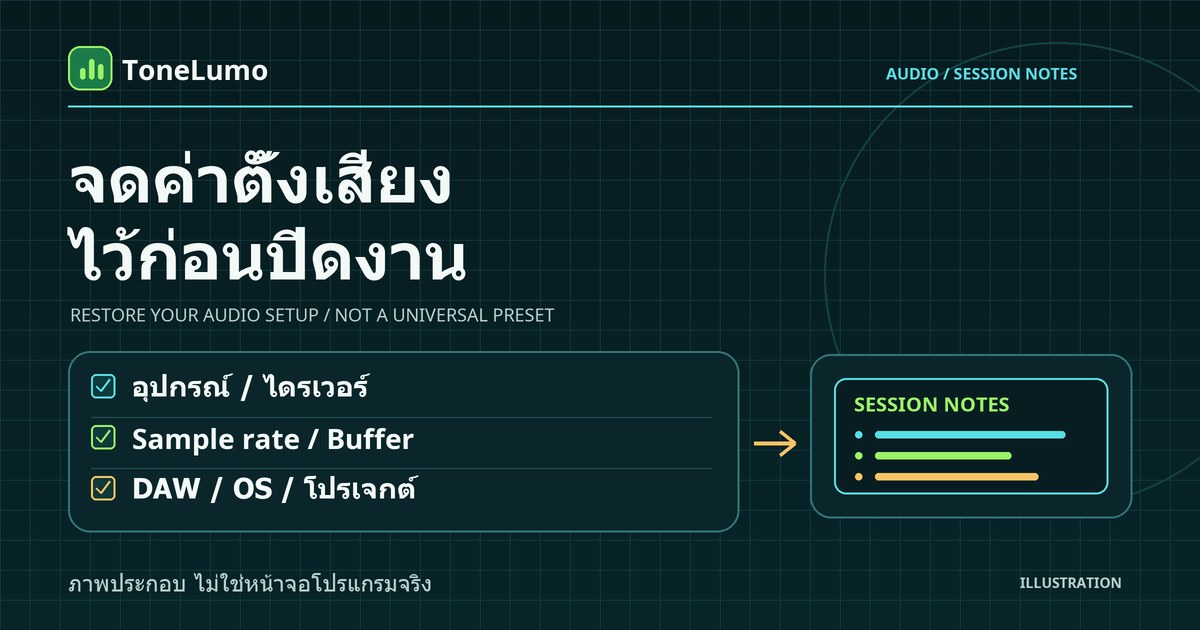
A practical session log for the driver, device, sample rate, buffer and monitoring path you used for recording or mixing, without copying a universal number from another setup.
Based on manufacturer documentation. Steps may vary by version.
Short answer: record the task and result with the setting
A buffer number alone may not reproduce a working setup. Driver, interface, sample rate and project load also affect the result. Ableton explains that a smaller buffer reduces latency but increases CPU demand and may cause dropouts when the system cannot keep up. Record what you were doing and what happened, rather than adopting someone else's number.
This is a note template based on vendor documentation checked on 3 November 2026. It is not a ToneLumo hardware test or a setting guaranteed for every computer.
One row for each recording or mixing task
Keep the full record privately. A first support message does not need passwords, serial numbers or private music files.
- Date and task: recording a microphone, playing a software instrument or mixing; identify a private project copy used for the check.
- Computer and app: operating system, DAW name and version, and audio-interface model if applicable.
- Signal path: Driver Type and the named input/output driver or device selected in the DAW, not only the interface brand.
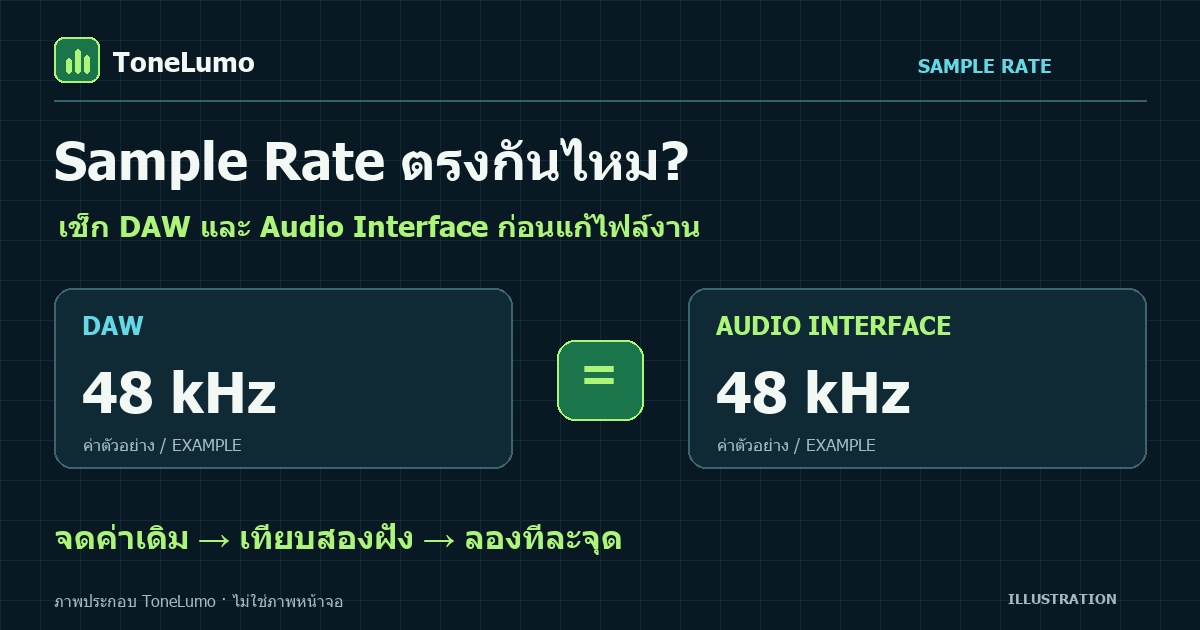
- Readings: sample rate with Hz or kHz units and buffer with samples or ms units; say whether each came from the DAW or the driver panel.
- Monitoring path: listen through the DAW or interface Direct Monitor; note whether the track's input monitoring is enabled.
- Before and after: describe delay, dropouts or doubled audio using the same short passage; change one setting, then note better, unchanged or worse.
- Restorable choice: mark the setting chosen for this task and why; review it after changing driver, hardware or project.
Where to find the readings
In Ableton Live, open Settings or Preferences → Audio for Driver Type, input/output device, sample rate and buffer. On Windows, some interfaces require Hardware Setup to adjust the buffer in their driver panel. FL Studio documents Options → Audio settings or F10 for Device, Sample Rate and Buffer Length; with ASIO on Windows, Show ASIO panel may hold the buffer control.
Distinguish the DAW display from the interface panel. Focusrite says Windows users can inspect sample rate and buffer in Focusrite Device Settings, and some DAWs can change those values. Note which window supplied a reading and check it again after opening the project. Image-Line states that FL Studio's Audio Settings are global app settings, not saved in an FLP project file.
Restore a recording or mixing setup
For recording while listening through the DAW, note perceived delay and any glitches in a short repeatable passage. If you need less latency, change the buffer one step at a time and replay that passage; return to the stable value if crackles or dropouts begin. A mixing task without live playing may tolerate more latency to keep a demanding project stable, but check the actual result in your session.
If your own voice sounds doubled, do not assume the buffer alone is responsible. Focusrite explains that hearing Direct Monitoring and the delayed DAW input together can cause an echo. Record the chosen monitoring path, and follow your interface's instructions for disabling DAW input monitoring when using Direct Monitor. Disabling monitoring does not stop the recording.
Do not turn an example number into a permanent recommendation. Results can change with the project, plug-ins, driver or computer.
If you want setup help
Send your DAW and version, operating system, interface model, driver name, reading with units, monitoring path and one before/after symptom through LINE after hiding personal details. ToneLumo can help separate the causes and agree the remote-work scope and price before starting. You purchase or activate software through your own account.
Sources and check dates
- Ableton — How to reduce latency · Checked 2026-11-03
- Ableton — Setting up an Audio Interface · Checked 2026-11-03
- Image-Line — Options & Settings · Checked 2026-11-03
- Image-Line — Audio Settings · Checked 2026-11-03
- Focusrite — Change sample rate and buffer size on Windows · Checked 2026-11-03
- Focusrite — Echo with Direct Monitoring · Checked 2026-11-03