Tips & setup
Before setting up music software: five questions to answer
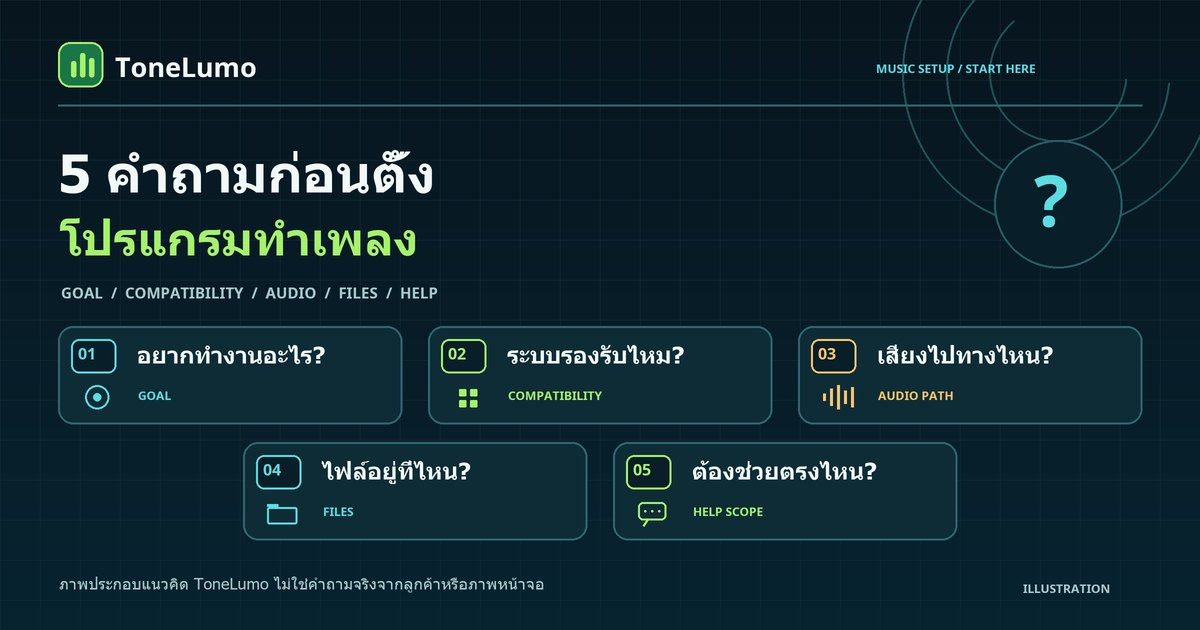
Start with the task you actually need, then check versions, audio routing, project files and the acceptance test. These are editorial checklist questions, not questions submitted by customers.
Based on manufacturer documentation. Steps may vary by version.
Where these questions come from
ToneLumo assembled these five questions from vendor documentation and existing site guides. They are not survey findings, actual visitor questions, or a ranking of first-month support requests. We do not have enough evidence to say what customers ask most often. Use this as a planning checklist, not a demand report.
Answers depend on the exact DAW version, operating system, device and licence. Identify what your own machine needs, then check the relevant current vendor manual before buying or changing several settings at once.
1. What is the first task you need to complete?
Name one observable result: record ten seconds from a microphone, hear a MIDI keyboard through an instrument in the DAW, or open an existing project and export a short audio file. These tasks require different checks. Recording needs an audio input path; MIDI notes alone still need an instrument to make sound.
If you plan to return to the project later, check trial restrictions first. Image-Line says the standard FL Studio trial can save and export, but cannot reopen its saved projects until you buy a suitable edition. That is an FL Studio restriction, not a rule for every DAW.
- Write the first task in one sentence.
- Name the short file or sound that would show it worked.
- Check trial limits before relying on an important project.
2. Do the program, computer and plug-in versions match?
Record the DAW's exact version, operating system, processor, available storage and any essential plug-in version. Compare them with the vendor's requirements for that version. Ableton lists separate requirements for Live 13, 12 and earlier releases; an answer for one release should not be carried over to another.
The installer filename alone does not settle plug-in compatibility. Check both the format your host accepts and the plug-in developer's operating-system support. Ableton lists VST and Audio Unit support for Live; AU is a macOS format and AAX is not in Live's supported-format list. For another host, use that host's own manual rather than guessing from a file extension.
3. Where does audio enter and leave?
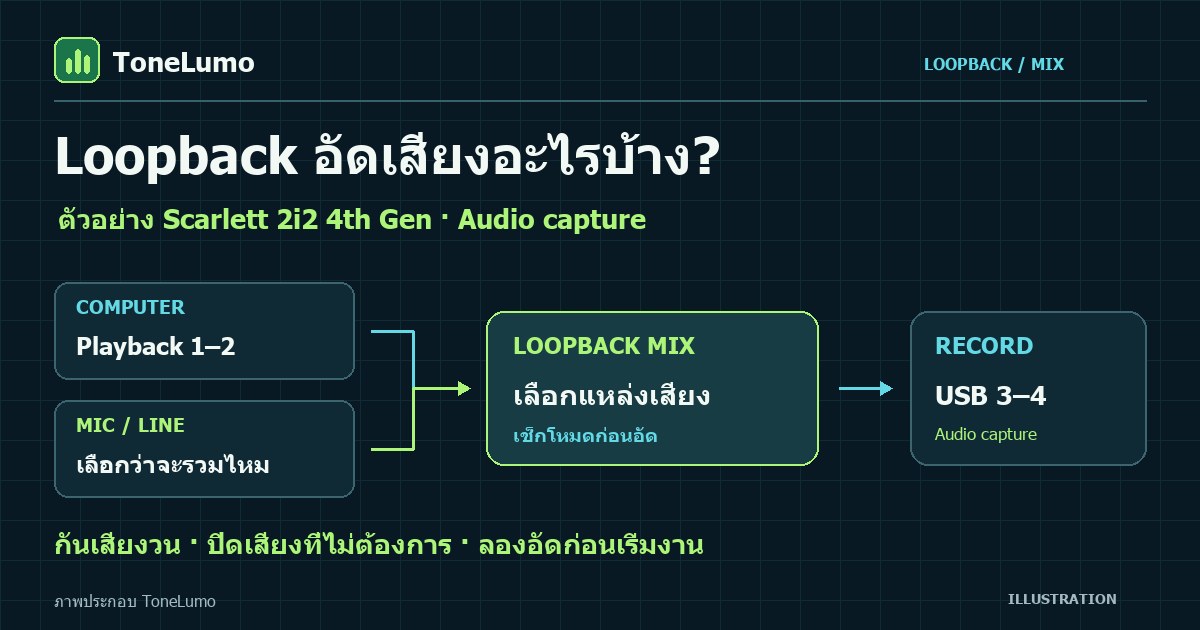
Sketch the path: microphone or instrument → interface input → DAW track → output → headphones or speakers. If sound is missing, inspect one point at a time, starting with the chosen device and signal level. Buying another plug-in will not fix a missing audio path.
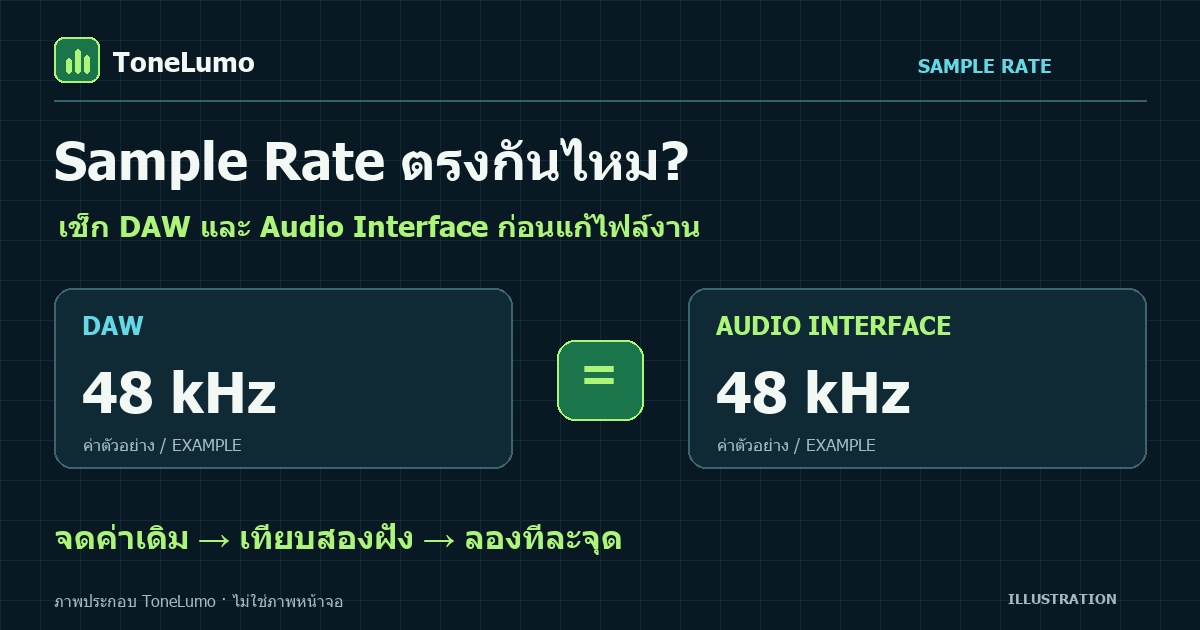
Ableton's recording guide explains how to choose Audio From and arm a track. Image-Line's FL Studio guide distinguishes the audio device from its driver and recommends an interface's own driver when available. If sound is delayed or breaking up, note the original buffer setting and change one value at a time. A smaller buffer can reduce delay but can cause dropouts on some systems.
- Choose the input and output for the device actually in use.
- Try a short test sound that reveals no private work.
- Note the old value before changing the driver or buffer.
4. Are the files needed for later work present?
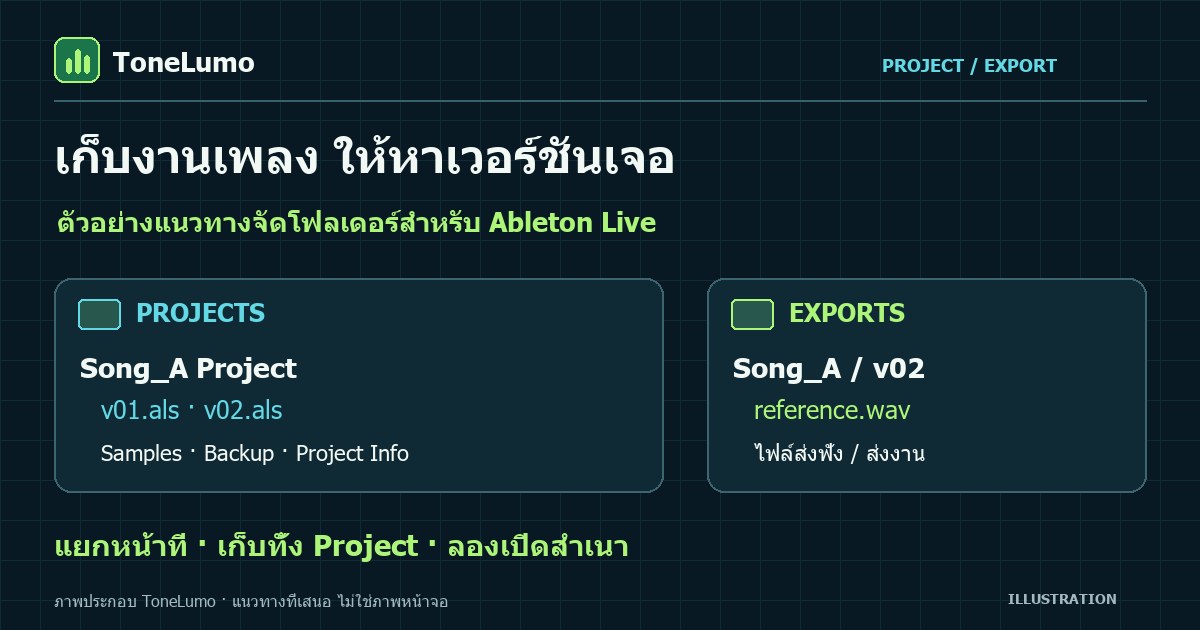
Separate the editable project from an exported audio file and from media referenced by the project. One playable audio file does not show that the project can be edited later. When moving work, open a copy from the destination instead of overwriting the original.
Ableton says Save and Save As in Live keep references to external files, so it recommends Collect All and Save before transferring a project. That command does not copy plug-ins. The recipient still needs the appropriate installed plug-ins and their own licences. Consult a different DAW's manual for its file-collection method.
5. What would count as setup complete?
Agree on one small test for the first task: open the DAW, check the relevant audio path, record and listen back if recording is in scope, and save and reopen a copy when the licence permits it. Note what passed, what remains untested, and any repeatable problem. A short test confirms only the conditions checked, not every project or device.
For an initial support request, share the program and version, operating system, device model, one goal, and a redacted error message or repeatable step. There is no need to send a password, licence key or real song file merely to ask. ToneLumo can help choose software, have customers purchase in their own accounts, and install it for use within an agreed remote scope and price.
Keep the answers in one short note
Use the five answers as a one-page brief. If version support or licence rights are still unclear, pause at that point and check the vendor's latest documentation before paying or moving a project. The related guides below cover trials, drivers, plug-in formats and project media in more detail.
- First task and observable test result
- DAW, OS and plug-in versions
- Device and audio path
- Files to keep or move
- What passed, was not checked, or needs help
Sources and check dates
- Ableton — Live Minimum System Requirements · Checked 2026-11-15
- Ableton — Supported Plug-in Formats · Checked 2026-11-15
- Ableton — Recording Audio · Checked 2026-11-15
- Ableton — Collect All and Save · Checked 2026-11-15
- Image-Line — FL Studio Trial Overview · Checked 2026-11-15
- Image-Line — Audio Settings · Checked 2026-11-15