Tips & setup
Back up MIDI controller mappings in Ableton Live and FL Studio
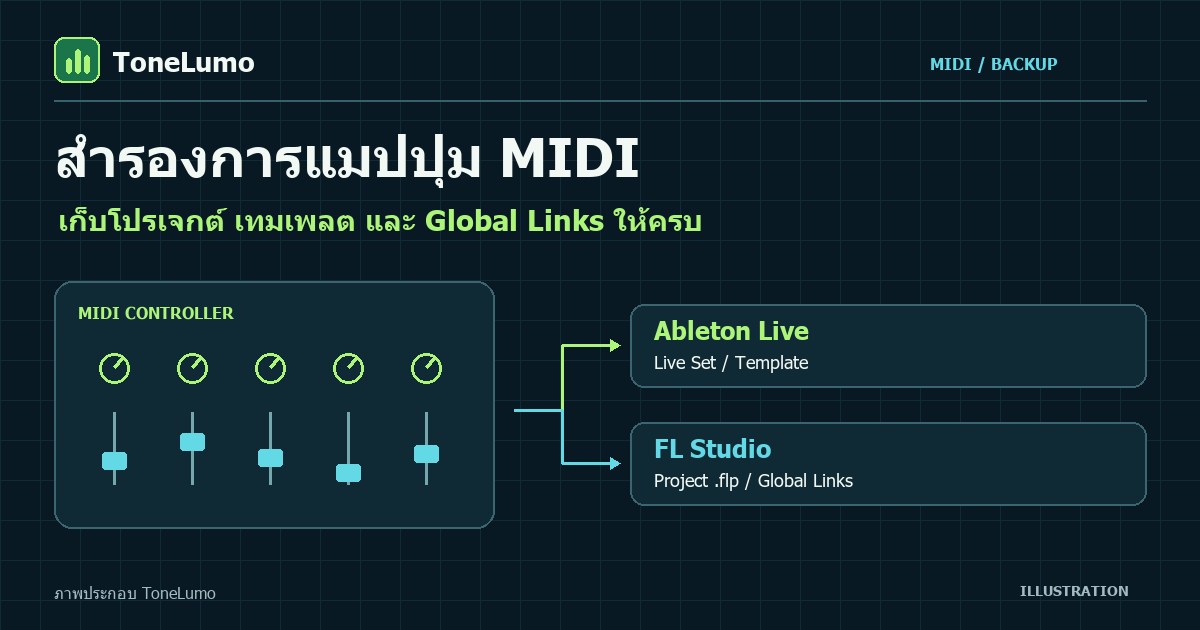
Save the Live Set, template, or FL Studio mapping files that hold your assignments, then check them in a copy before changing computers or updating your DAW.
Based on manufacturer documentation. Steps may vary by version.
Identify where your assignments are saved
Before moving computers, write down which knobs and faders control which parameters and how each assignment was made. A project can open normally while some controls stop responding if the MIDI port or controller preset differs from the original setup.
Ableton Live 12: save the Live Set or a template
For assignments created in MIDI Map Mode, keep the working Live Set (.als) and its project files. To reuse the same assignments in new work, save the Set as a template. Choose Save Live Set As Default Set… if you want it to open by default. Ableton documents that Template Sets can retain MIDI mappings.
On the destination computer, select the controller port in Settings → Link/MIDI and enable Remote on the Input side for manual mapping. Open MIDI Map Mode to inspect the assignments. Automatic Control Surface setup is separate. Check the controller type and ports against the manufacturer’s instructions.
FL Studio: distinguish project links from global links
Links made with Link to controller are saved with the .flp project and take priority over Global Links for the same target. If you use Global Links, also back up Settings/Mapping/Generic inside the FL Studio User data folder. Image-Line documents controller subfolders there. Keep a backup of any destination mappings before replacing files.
Global Links can follow the window or plugin in focus. If a knob moves a different parameter, check which window is selected and confirm the MIDI channel used when creating the link.
Try a copy before relying on the restored settings
This checklist comes from the developers’ documentation. If the controls still do not respond, confirm the DAW can see the controller and receive MIDI before you troubleshoot the assignments.
- Record the controller model, MIDI port, MIDI channel, and hardware preset or mode.
- Open a copy of the project or template, lower playback levels, and try two or three familiar controls. Confirm that the expected parameters move.
- For FL Studio Global Links, try the original project and a new project so you can tell which assignments are project specific and which work across projects.
Sources and check dates
- Ableton — Making custom MIDI Mappings · Checked 2026-11-18
- Ableton Live 12 — Managing Files and Sets · Checked 2026-11-18
- Image-Line — Linking External Controllers · Checked 2026-11-18