Tips & setup
What to check when connecting a MIDI keyboard
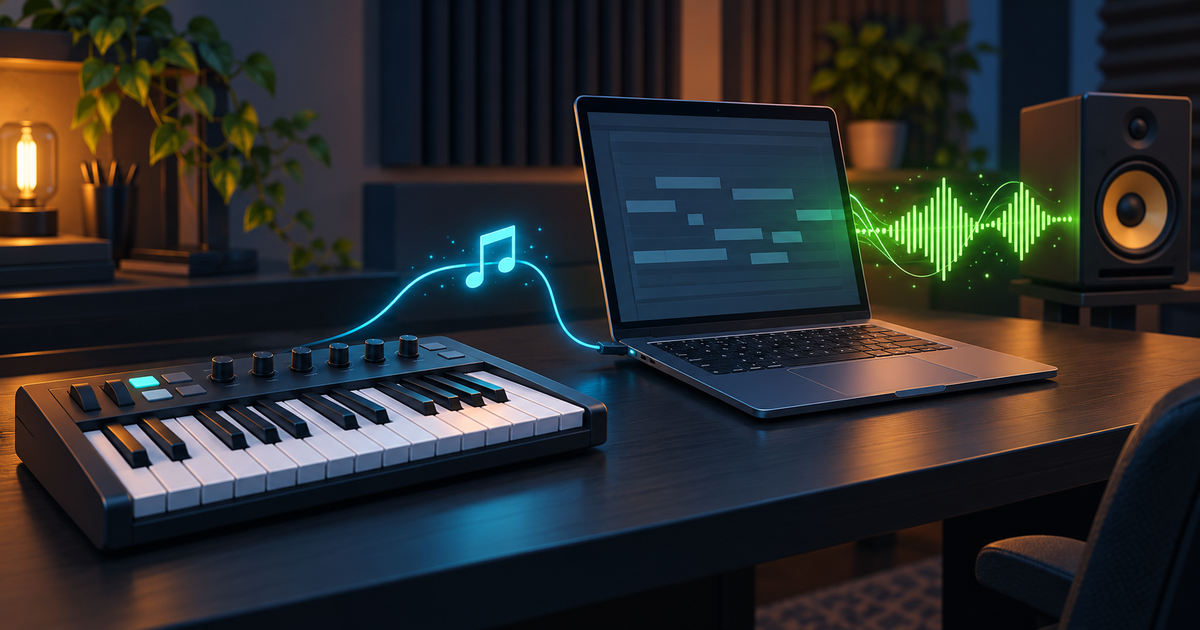
Some MIDI keyboards work as soon as they are connected; others need a manufacturer driver. Check the cable, device detection and DAW input settings before installing extras.
Based on manufacturer documentation. Steps may vary by version.
First: check your model, not a generic driver list
A class-compliant MIDI keyboard can work without a dedicated download. Other models need a driver or software from the manufacturer. Ableton advises checking the device documentation and getting a required USB driver from the manufacturer's website. Do not assume every keyboard needs the same driver or download an unknown driver bundle.
MIDI carries note presses and controller movements; it does not itself carry audio from the keyboard. To hear a software instrument, load one in your DAW and set your computer or audio interface output separately. Recording the actual sound of a hardware synthesizer may also require an audio connection, depending on its manual.
1. Check the cable, port and power
For a USB keyboard, use a data-capable cable, connect it to the computer and switch it on. Follow the device manual if it needs separate power. If it is not detected through a USB hub, try a direct computer port; some hubs cannot supply enough power.
A keyboard with only five-pin MIDI sockets needs a MIDI cable from the keyboard's MIDI OUT to a MIDI interface's MIDI IN. This is different from an audio cable. Ableton documents both connection types.
2. Confirm that the computer detects it
On a Mac, open Audio MIDI Setup > Window > Show MIDI Studio. Apple explains how to view connected devices and use Test MIDI Setup to confirm incoming notes. If the device does not appear, check its cable, port, macOS compatibility and any model-specific manufacturer software.
On Windows, first look for the device in your DAW's MIDI input list. If FL Studio was already open when you connected it, its MIDI Settings page has Refresh device list. If it is still missing, consult the exact model's official support or downloads page rather than guessing at a driver.
3. Enable the DAW input and load an instrument
In FL Studio, open Options > MIDI settings (F10), select the keyboard under Input and enable it. Play a note and watch the MIDI activity indicator. Then select an instrument channel to play a sound.
In Ableton Live, check the controller's input port in Settings > Link, Tempo & MIDI and activate Track. Add a MIDI track containing an instrument, select the controller under MIDI From, and use Monitor In or Auto with the track armed as appropriate. Knobs or transport controls may need extra mapping or a supported script, but test basic notes before adding optional software.
MIDI is arriving, but there is no sound
If the MIDI indicator moves, the DAW is receiving MIDI data. Check that the track contains an instrument, receives the correct port, and sends audio to the speakers or headphones you are using. MIDI input and audio output are separate steps.
If there is no MIDI activity, revisit the cable, port, input list and enable switch. For help, send the keyboard model, operating system, DAW, connection type and the step that fails. We will agree on the remote-work scope and price before an appointment.
Sources and check dates
- Ableton — MIDI controllers FAQ · Checked 2026-10-24
- Image-Line — Controller/MIDI Settings · Checked 2026-10-24
- Apple — Set up MIDI devices using Audio MIDI Setup on Mac · Checked 2026-10-24
- Apple — Test your MIDI setup · Checked 2026-10-24