Tips & setup
How to Read DAW Release Notes Before Updating
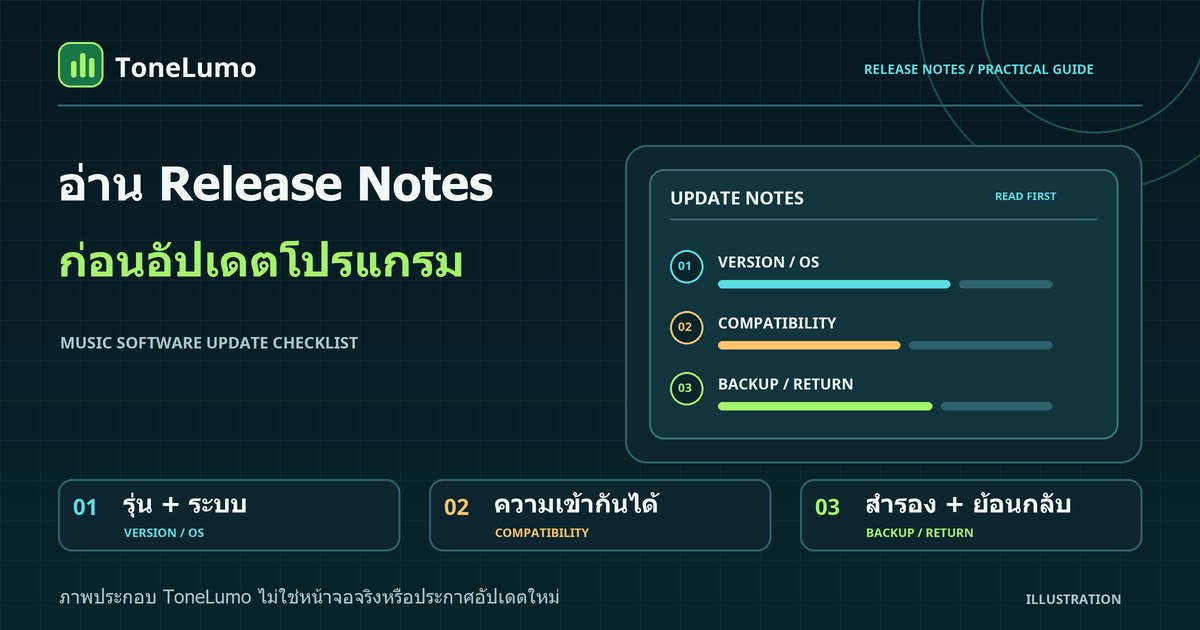
Match the exact release and operating system, distinguish new features from fixes, and check compatibility before planning a safe test of your music setup.
Based on manufacturer documentation. Steps may vary by version.
Short answer: identify what changed, for whom, and in which release
Release notes tell you what a developer says it added, changed or fixed in each version. A line marked fixed is not a hands-on result for your computer, plug-ins or projects. This is a guide to reading vendor documents, not news of a release today or a ToneLumo hardware or software test.
Before downloading, answer three questions: does the full version number match the installer you intend to use, does the change address your workflow or symptom, and do your operating system and older projects remain compatible? If any answer is missing, follow the relevant vendor documentation before deciding.
Start with the developer's page and the exact release
Open the developer's own change log and record the product, full version, entry date and operating system you use. Do not rely on a social headline or promotional image alone. Ableton's official Live 12 notes group changes by release, while Image-Line's What's New page identifies FL Studio versions and dates.
Read the release channel too. An entry labelled RC or beta in vendor material should not automatically be described as a general release. Do not apply an entry for one version to another installer. If you do not know your installed version, read it from the application's About screen before comparing.
Separate features, changed behaviour and bug fixes
Read the subsection heading before selecting a line that matters to you. Many Ableton Live 12 entries use New Features and Improvements and Bugfixes headings. Image-Line separates Changes and Fixes, and some FL Studio entries are platform-specific, including macOS sections. A line under macOS does not establish the same effect on Windows.
For a concrete reading example, Image-Line's FL Studio 26.1.7.5 entry dated 12 October 2026 lists a common fix and a macOS Browser re-indexing CPU fix in separate subsections. This illustrates how to read the category and platform; it is not an announcement of a new release today or advice for everyone to install that version.
Check compatibility separately from the change log
For a DAW update, open the system requirements for that product and version. Ableton gives separate Live 12 requirements for Windows, macOS and processor types. Match those details to the actual computer instead of inferring support from a short 'Mac compatible' or 'Windows compatible' headline.
Check project compatibility too. Ableton explains that a Set saved in a newer Live release may not open in an older release, even between Live 12 point versions. Save As can preserve the original for an older installation. If a project relies on third-party plug-ins or sample libraries, check those developers separately: a DAW bugfix list is no guarantee that every external component will work.
Turn a long change log into a one-page decision
Make a small worksheet: 'installed version / proposed version / OS and processor / relevant note / essential plug-ins / test project copy / expected result'. Mark each relevant entry as a new feature, changed behaviour or a fix for a symptom you actually encounter. A long list alone is not a reason to update immediately.
If a fix addresses a problem blocking your work and requirements are met, test it with a small project copy first. If the changes do not affect a project due for delivery, scheduling the update later may be simpler. If OS or plug-in support remains unclear, keep the question open and check with its developer rather than claiming compatibility from a guess.
- Match the version in your app, installer and release-note heading.
- Select only features or fixes that affect your actual workflow.
- Check OS, processor, plug-ins and project-file support in their relevant documentation.
- Open a copy, test the affected step, record the result, then plan any update to important work.
If the notes still leave questions
Share the product and version you use, your operating system, the proposed version, the official release-note link, and the line you are unsure about. A license key, password or real project file is not needed for an initial question. ToneLumo can separate what the documents confirm from what still needs checking on your computer.
If you want help choosing an update window or installing by remote session, we agree on scope and price before work begins. Customers purchase software through their own accounts.
Sources and check dates
- Ableton — Live 12 Release Notes · Checked 2026-11-10
- Image-Line — FL Studio What's New Change Log · Checked 2026-11-10
- Ableton — Live Minimum System Requirements · Checked 2026-11-10
- Ableton — Backward Compatibility · Checked 2026-11-10