Tips & setup
Prioritise a music setup problem before buying more
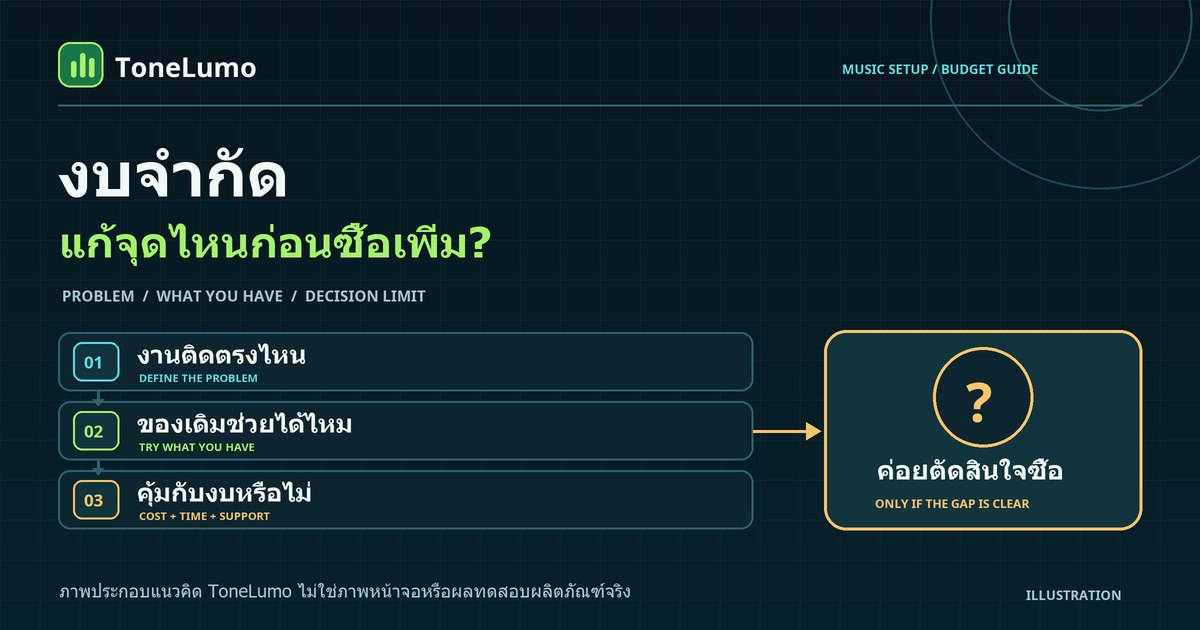
Name the task that is blocked, check the settings and gear you already have, and set a spending test without assuming a new purchase will solve an undiagnosed problem.
Based on manufacturer documentation. Steps may vary by version.
Start with the blocked task, not a shopping list
Write one sentence about what you cannot do yet: for example, 'monitoring my vocal feels too delayed to sing' or 'this project opens without sound.' Note whether it happens in every project or only one, and whether recording, mixing or delivery is due soon. 'My computer is not good enough' is a hypothesis, not a diagnosis.
List the DAW and version, operating system, audio device, driver, relevant plug-ins and tools you already own. Set a total budget ceiling that includes software, hardware and any support time. Separate today's blocker from an optional improvement so that spending follows the work you need to finish.
Check what your current setup can do first
For crackles or dropouts during live playback, Ableton recommends increasing buffer size step by step and replaying the affected passage. Too small a buffer can cause crackles, while a larger one adds latency. FL Studio's manual also explains this trade-off. Neither symptom alone proves that you must buy a new computer or audio interface.
For silence, check the DAW's selected output device, volume and mixer routing first. Image-Line's FL Studio support guide points to Audio Settings and the route from a mixer track to Master. These are ways to isolate a cause, not a promise that every silent project is fixed by changing a setting.
If the task seems to need another plug-in, name the missing function and try devices already in your DAW using a project copy. If a new one still makes sense, check the DAW format, current developer manual, trial and license terms. This article does not test or endorse a product.
- Dropouts: write down the original buffer, change one value at a time and replay the same passage.
- Silence: check the output device, levels and routing before buying another device.
- Missing function: define the job and try current tools before comparing additions.
Run a small check you can undo
Keep a project copy and record the settings before changing them. Change one thing at a time, repeat the same passage, and write down whether the symptom improved, worsened or stayed the same. Restore the earlier value if it did not help. A small empty Set and a large project may behave differently, so identify which project you checked. One machine does not establish an answer for every setup.
The FL Studio manual notes that the underrun counter can rise while a project or plug-in loads without an audible live-playback problem. Listen as well as reading the number. If a driver download is needed, match the exact device model and use the manufacturer's official page.
Answer three questions before paying
If your current tools fall short, compare options against the evidence. There is no universal budget percentage: someone recording a voice, composing on headphones and mixing a large project may face different bottlenecks. A higher price does not show that an undiagnosed symptom will disappear.
Answer all three questions below before paying. If one is unclear, consult the relevant manual or get help with a small diagnostic scope first. Customers should purchase in their own accounts, checking the seller's current price, trial and return terms on the day of purchase.
- What result must the work achieve, and how will you check it?
- What have you tried with existing tools, what happened, and which limitation is documented?
- Does the proposed purchase support your system and task, and does its total cost fit the ceiling?
Illustrative example: dropouts while mixing
Suppose one song drops out with several plug-ins active while a small project plays continuously. Save a copy, note the buffer setting and try increasing it step by step using the DAW manual, replaying the same affected passage. Improvement suggests the setting was relevant; it does not prove that hardware can never be a limit.
If dropouts persist, check the driver and plug-ins against the documentation for their actual versions. Keep reproducible results before comparing a repair, configuration help or a purchase. This is a hypothetical decision example, not a customer case, a ToneLumo machine test or a guarantee about any product.
If you want help setting priorities
Share your goal, symptom, DAW version, operating system, current equipment, budget ceiling and what you have already tried. You can redact personal information from a warning screenshot. An initial question does not require a password, license key or real project file.
ToneLumo helps choose software, purchase it through the customer's own account and install it for use through a remote service with agreed scope. We agree on the work and price before starting. We do not claim brand representative status without written approval.
Sources and check dates
- Ableton — How to avoid crackles and audio dropouts · Checked 2026-11-13
- Ableton — How to reduce latency · Checked 2026-11-13
- Image-Line — Audio Settings · Checked 2026-11-13
- Image-Line — There is no sound from FL Studio · Checked 2026-11-13