Plugins & reviews
Before buying another EQ plugin, test your DAW's tools
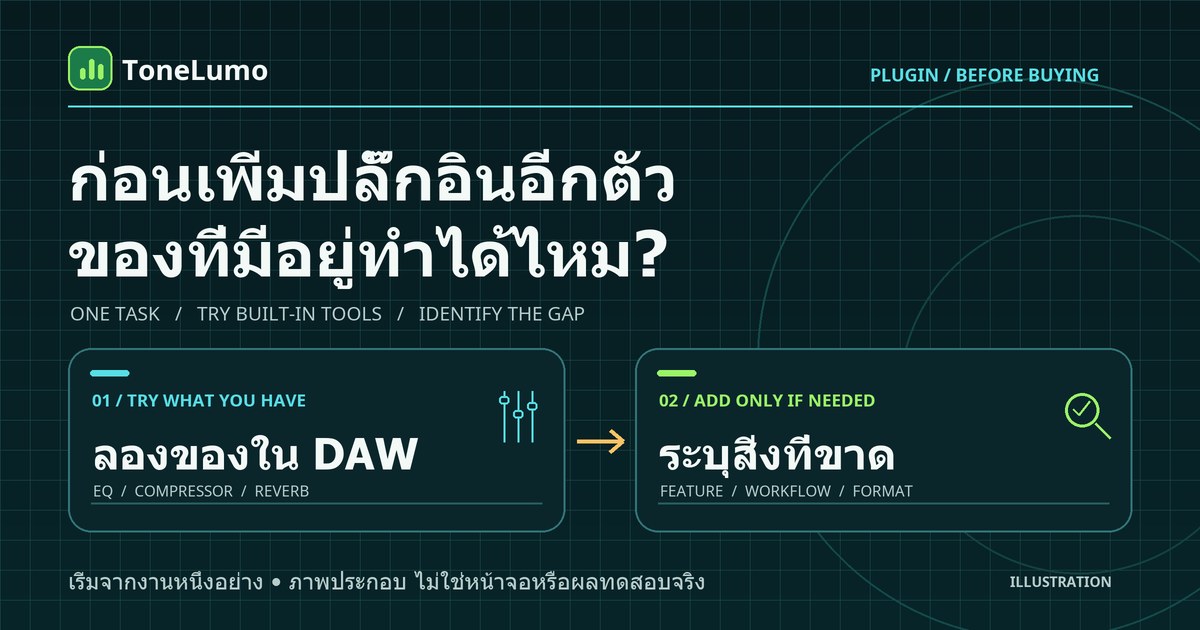
Pick one audio task, try the EQ already available in Ableton Live or FL Studio, and compare the same passage before deciding whether another plugin is needed.
Based on manufacturer documentation. Steps may vary by version.
Short answer: define the task before choosing a tool
If a vocal sounds dull in one section, start by naming the track, passage and change you want to hear, rather than making a shopping list. This guide uses one task, shaping the tone with an EQ, so you can try what your DAW already has and decide from your own project.
Ableton and Image-Line document EQ tools in their DAWs, but neither manual promises one tool will give the best result for every song. The steps below are ToneLumo's suggested evaluation method based on official documentation checked on 1 November 2026. This is not a hands-on sound comparison of plugins.
Check the EQ tools already in your DAW
The Ableton Live 12 manual describes EQ Eight with low-cut, shelf, peak and notch filters and individual band switches. Available effects depend on your Live edition, so check the Browser and your edition's features before assuming EQ Eight is included.
FL Studio's Mixer Track has an integrated EQ with low-shelf, peaking and high-shelf bands. Image-Line also documents Fruity Parametric EQ 2, whose filter type, frequency and width can be adjusted. Some FL Studio effects may run only in trial mode for a given edition. Check the edition badge and your own license rather than assuming every effect is fully available.
Try the same passage in a project copy
If the result is still unclear, revisit track level, arrangement and source audio as well. Another EQ cannot solve every cause, and a different-looking response curve alone is not a reason to buy.
- Save a separate copy of the project. Choose a short passage where the problem is clear, then replay that exact passage each time.
- Place one available EQ on the target track. Change one thing at a time, such as a small adjustment in a frequency region that sounds relevant, rather than copying a fixed frequency recipe to every voice.
- Switch the EQ on and off while listening to the same passage. Bring the output level close to the unprocessed level before judging the tone, so a loudness change does not dominate the comparison.
- Write down whether the passage improved or became worse. Save, close and reopen the copy to check that the setting returns.
When to consider a third-party plugin
If the existing EQ does the job on the selected passage and the project reopens correctly, you may not need another plugin for this task. If you can name a real limitation, such as a control or workflow you need but cannot achieve with your current tool, write it down before comparing the manuals for alternatives.
For any plugin you consider, confirm its DAW version, operating system, plugin format, license and installation instructions with its developer. Try a project copy under the actual trial terms before buying. Avoid relying on an untested claim that one tool simply 'sounds better' without the same task and comparison conditions.
Ask ToneLumo about the work, not just a product name
Send your DAW and edition, operating system, one audio task and the tools you have already tried on LINE. We can review what your existing tools can do and where they fall short before recommending another plugin or setup work. We agree the remote-work scope and price before starting. You buy any software through your own account.
Sources and check dates
- Ableton Live 12 Manual — Live Audio Effect Reference · Checked 2026-11-01
- Image-Line — Mixer Track Properties · Checked 2026-11-01
- Image-Line — Fruity Parametric EQ 2 · Checked 2026-11-01
- Image-Line — FL Studio Editions and Features · Checked 2026-11-01
- Image-Line — Effect Plugins · Checked 2026-11-01