Tips & setup
Preparing for a remote support appointment
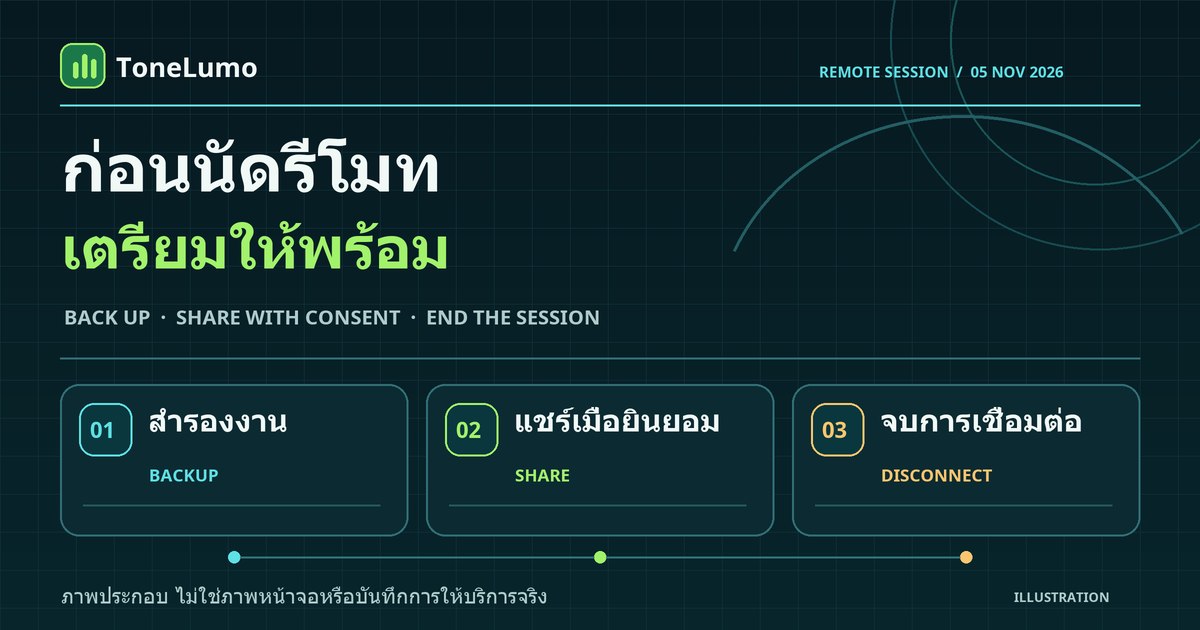
After agreeing to a remote music-software appointment, confirm its scope, make a usable project copy, limit screen access, approve control only when needed and review permissions when the session ends.
Based on manufacturer documentation. Steps may vary by version.
Before starting: confirm the agreed work
Once an appointment to choose, install or troubleshoot music software is agreed, describe a short outcome you can check: for example, install the agreed version and open a project copy, or investigate one reproducible symptom. Confirm which computer is involved, the time, permitted changes, scope and price before work begins. If a new task appears during the session, pause and agree its scope and price before continuing.
The customer purchases software and signs in to their own account. A helper does not need a password, one-time verification code or license key sent in chat. This is preparation guidance; it does not say which remote app ToneLumo uses or promise the same result on every computer.
Make a working copy you can open
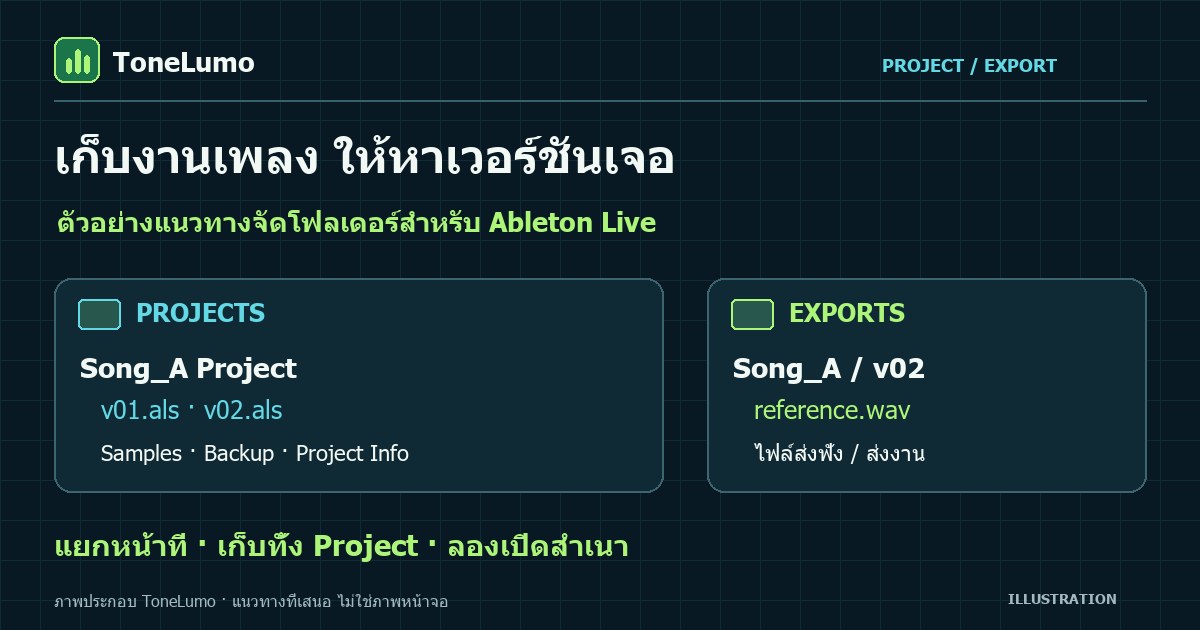
Before anyone changes a setting or opens important work, save a separate project copy with a clear name and date, then try opening it yourself. Gather the audio and other media the project references using your DAW's documented method. A single project file may be insufficient when its media sits elsewhere.
Ableton Live provides a product-specific example: its Collect All and Save guide says the command copies media into the project folder, but does not copy plug-ins. Keep installers, account access and license details separately under the developer's terms. A project copy is not a whole-computer backup. Do not send private songs or project files to a helper before their need is clear.
Prepare the screen before sharing it
Close unrelated email, banking, password-manager windows and other clients' files. Mute notifications that could reveal private information. Keep only the relevant DAW, installer or settings window ready, and stay at the computer for decisions throughout the appointment.
Verify that the helper is the person you booked through the agreed contact channel before accepting an invitation or connection code. Do not accept an unexpected remote-access request. If a store, app or developer account needs sign-in, enter the credentials yourself without reading a password or verification code aloud.
Approve viewing and control in separate steps
Agree on the actual support method and access needed. Start with an explanation or view-only sharing when that is enough. If mouse or keyboard control is required, agree on the specific step and watch the changes. Microsoft Quick Assist illustrates a tool that asks separately for permission to see the screen and for full control, and offers controls to cancel control or leave the session. This describes Quick Assist, not a claim that ToneLumo uses it.
Apple's built-in Screen Sharing guide describes viewing and controlling a Mac from another computer on the same network, with settings for who may connect. This is a macOS network-sharing example, not a recommendation to expose it for internet support or grant access to all users. Check the permissions of whichever tool is actually used before approving them.
Test the result in a copy and record each change
Write down the original value and each change, such as an installed version, file location or DAW setting. Re-run the short action that checks the agreed goal in a project copy. The customer should try opening, playing or saving it themselves and report whether the original symptom is gone, different or still present. Separate what was verified from work that still needs investigation.
If further work falls outside the agreed scope, explain the options and effects before doing it. Do not call a task complete solely because an app opened once when the agreed workflow has not been checked.
End the appointment and review remaining access
At the end, the customer should stop sharing, cancel control or leave the session in the chosen app. Check whether any temporary unattended-access permission remains, and keep a short note of what changed, what was tested and what remains open. Closing a window by itself should not be treated as proof that every permission was removed.
If built-in macOS Screen Sharing had deliberately been enabled for computers on the same network, Apple documents turning it off under System Settings → General → Sharing → Screen Sharing. This setting is specific to macOS; other support apps manage access differently.
Planning an appointment with ToneLumo
Send your goal, software and operating system, and a convenient time through LINE without sending passwords or private project files in advance. ToneLumo can help plan software selection and installation for a working setup. We agree the remote-work scope and price before starting, while you buy and activate software through your own account.
Sources and check dates
- Microsoft Support — Solve PC problems remotely using Quick Assist · Checked 2026-11-05
- Apple Support — Turn Mac screen sharing on or off · Checked 2026-11-05
- Ableton — Collect All and Save · Checked 2026-11-05