Tips & setup
Moving your music setup? List the software before you go
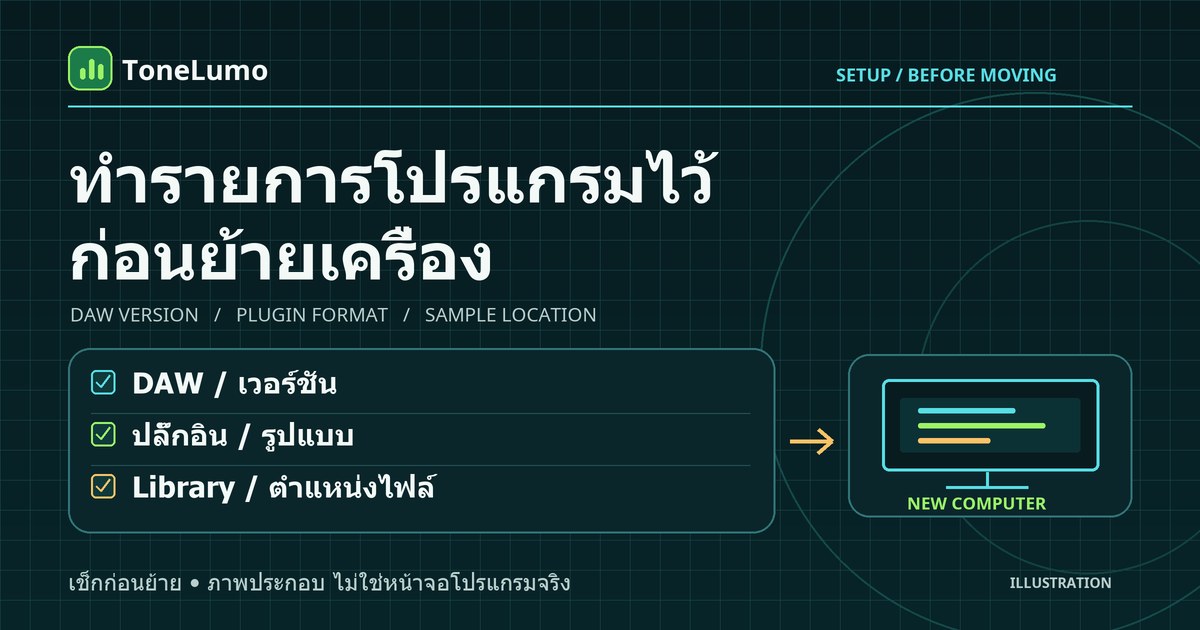
Record your DAW version, plug-in formats and sample-library locations before moving computers, then check one project copy on the new machine without sharing passwords or license keys.
Based on manufacturer documentation. Steps may vary by version.
Short answer: make the list before copying files
A project file can identify what the work refers to, but it does not take every application and sound library with it. Ableton says Collect All and Save brings selected media into the Project folder, but not third-party plug-ins. Image-Line advises moving samples and installing the same plug-in format used by an FL Studio project. Make your inventory while the old computer can still open the work.
This is a preparation template, not a list of products ToneLumo has tested on every computer. Follow the instructions and license terms for your own software version where they differ.
A one-page inventory: record these six fields
Keep the full list privately. An initial support request does not need your password, serial number, private song files or an account screenshot.
- Computers and system: operating-system version and processor type on both machines, plus the audio-interface model and driver name if the project relies on them.
- DAW: application name, edition and exact version that opens an important project, plus the vendor account used to install it. Keep passwords and license keys out of this list.
- Plug-ins used in the project: developer, plug-in name, version and format such as VST2, VST3, AU or CLAP. Record the format the track actually loads rather than guessing from the product name.
- Sound libraries and presets: product name, version, original folder or drive location, and the vendor manager used for installation or relocation, such as Native Access where applicable.
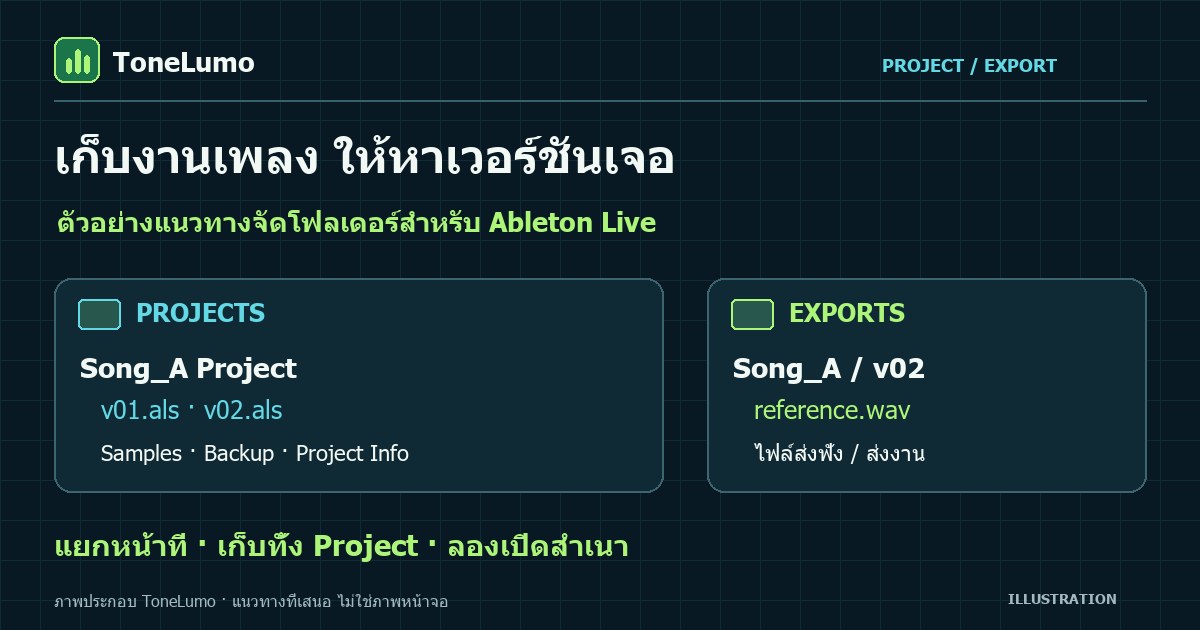
- Projects and audio: copied-project folder, backup date and any external sample locations. Note whether you used Collect All and Save or a Zipped Loop Package without assuming either command includes every type of content.
- New-computer check: name of the project copy you opened, check date, and any missing-file or missing-plug-in warning. Keep the exact warning so you can resolve one item at a time.
Plug-in format and library location matter
The same plug-in name can be available in several formats. Ableton lists AU for macOS and VST3 support by Live version. Image-Line's transfer guide says to install third-party plug-ins in the same format and version used by an FL Studio project. If you move between Windows and macOS, check a format supported by both systems rather than assuming an AU instance will open as a VST.
A sound library can live apart from the plug-in file. Native Instruments distinguishes Application and Content install locations in Native Access and documents Repair or Relocate when a library moves. Record the old folder before moving it, then use the developer's tool to find it on the new computer instead of placing raw plug-in files in a guessed folder.
Move one project copy before moving everything
This is ToneLumo's check plan based on vendor documentation reviewed on 2 November 2026, not a hands-on migration test or a guarantee that every project will reopen identically.
- Choose one important project and back it up. Use the DAW's documented collection method: Ableton recommends transferring the entire Project folder after Collect All and Save; Image-Line explains Zipped Loop Package or moving a project folder with its samples.
- Install the DAW and plug-ins through the vendor's installer or account manager. Check operating-system support, format and license terms before opening the work. Do not treat copying raw plug-in files from the old machine as the main installation method.
- Open the copy on the new computer, play a familiar passage, inspect missing-file or missing-plug-in messages, and note the result beside each item. If third-party processing is still unavailable, consult your DAW's render or bounce guidance before moving the remaining work.
- Keep the old machine and backup until the important projects reopen. One project opening without a warning is not proof that every project is complete.
If something is missing, use the inventory
For a missing plug-in warning, compare the recorded developer, version and format with the actual installation before changing anything. Image-Line recommends enabling Verify plugins during an FL Studio scan to help identify the correct plug-in. For missing audio, compare the library location with the DAW's search folders and use the relevant developer's Locate or Repair workflow.
If you want ToneLumo to help prepare the list or install the setup, send the software names and versions, operating system, hardware model and a warning message with personal details hidden through LINE. We assess the task and agree on the remote-work scope and price before starting. You buy or authorize software in your own account.
Sources and check dates
- Ableton — Transferring Projects to another computer · Checked 2026-11-02
- Ableton — Collect All and Save · Checked 2026-11-02
- Ableton — Supported Plug-in Formats · Checked 2026-11-02
- Image-Line — How to share FL Studio projects or move them to another computer · Checked 2026-11-02
- Native Instruments — Repair / Relocate in Native Access · Checked 2026-11-02
- Native Instruments — Changing Install Locations · Checked 2026-11-02