Plugins & reviews
Before installing a free plugin: four things to check
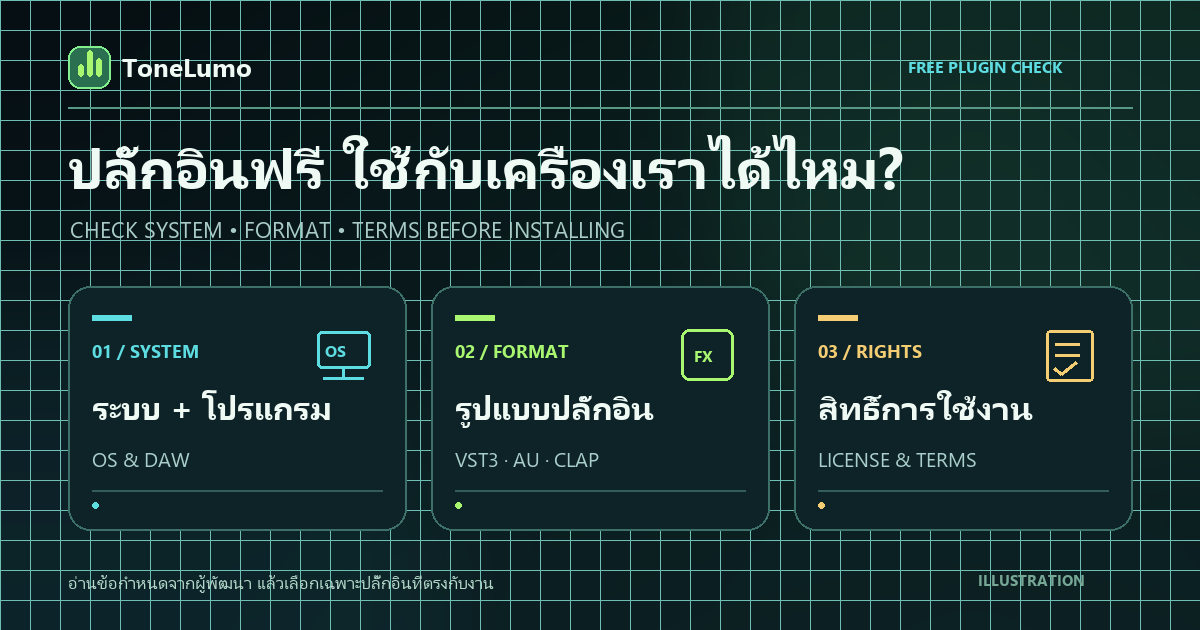
A zero-price plugin may still be a poor fit for your setup. Check the task, OS and plugin format, usage terms, and the official install path first.
Based on manufacturer documentation. Steps may vary by version.
Short answer: free does not mean ready for your project
Before downloading, answer four questions: what job should this plugin do; do your computer and DAW support it; do its terms allow your intended use; and how does its developer say to install it? These checks can rule out poor matches before you spend time troubleshooting.
This is a checklist based on developer documentation, not a hands-on test of every plugin. Requirements may change by version, so recheck the download page and manual for the exact build you intend to use.
1. Name the sound or effect you actually need
Describe the task, such as a particular synth sound or a specific audio problem, then check whether your DAW already has a tool that does it. If the built-in option works and reopens reliably with the project, another plugin may not help you finish sooner.
If you do try something new, choose one plugin for that task instead of installing several at once. That makes it easier to tell which change affected the project.
2. Match the OS, DAW version and plugin format
Check the operating system, DAW version and format the developer supplies, such as VST3, AU or CLAP. A format is not automatically supported in every DAW. Ableton lists 64-bit VST3 support from Live 10.1 and AU on macOS. Image-Line lists VST3 and CLAP for FL Studio on Windows and macOS, with AU available on macOS.
For example, Surge XT's download page checked on 26 October 2026 lists a Windows 64-bit installer with VST3/CLAP and a Universal macOS build with AU/VST3/CLAP. Compare the exact download with your own system and DAW rather than stopping at a broad Windows or Mac label.
- Check the supported DAW and operating-system versions.
- Check whether it is an instrument or effect and whether your DAW accepts that format.
- For FL Studio projects shared between Mac and Windows, follow Image-Line's VST guidance: a Mac AU does not match its Windows VST counterpart inside the project.
3. Read this plugin's usage terms
Free describes the price at download; it does not answer every rights or account question. Check the developer's terms for commercial music, account requirements and redistribution of the plugin files. Do not apply one developer's terms to a different product.
Surge XT is a clear example: its FAQ says music and sounds made with the plugin may be distributed or sold. Its GPL3 software license concerns modifying or distributing the software itself, rather than restricting music made with it. That is Surge XT's stated policy, not a promise about all free plugins.
4. Use the developer download and test a project copy
Choose a stable release from the developer when available, and avoid installer bundles from unknown sources. Image-Line recommends the plugin's installer and default location first, then scanning through FL Studio's Plugin Manager. Do not move a VST3 file into a guessed folder to make it appear.
Open a small copy of a project, load one instance, save, close and reopen it. Confirm that your DAW finds the plugin and restores its settings. This checks your own setup; it does not guarantee compatibility with every project or future update.
Want a compatibility check before remote setup?
Send us the plugin name and developer link, Windows or macOS version, DAW name and version, and what you want to do with it. We can review the initial fit and agree on the work and price before a remote appointment. No password or private song files are needed for an initial enquiry.
Sources and check dates
- Surge XT — Downloads · Checked 2026-10-26
- Surge XT — Frequently Asked Questions · Checked 2026-10-26
- Ableton — Supported Plug-in Formats · Checked 2026-10-26
- Image-Line — Plugin Formats Supported · Checked 2026-10-26
- Image-Line — Installing Plugins · Checked 2026-10-26