Tips & setup
Different headphone and speaker mixes: where to look
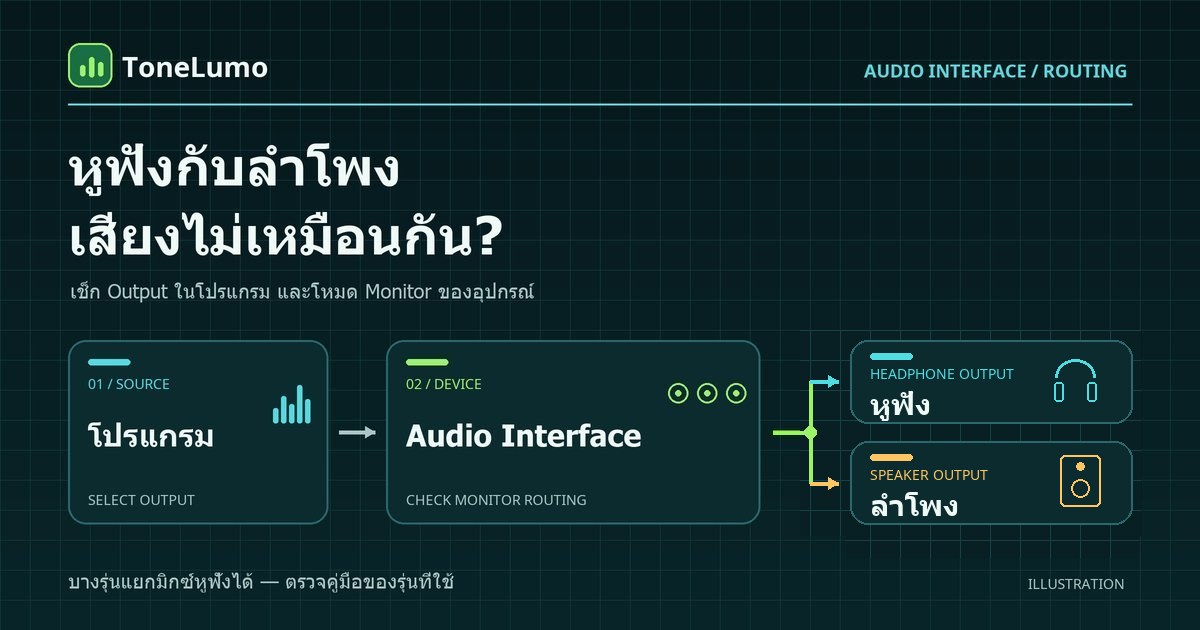
Before changing your DAW mix, check the interface model, physical outputs and routing. Some interfaces can send different mixes to headphones and speakers.
Based on manufacturer documentation. Steps may vary by version.
Short answer: identify the two output paths
If the vocal is loud in your headphones but quiet on the speakers, do not change every plugin or the whole song mix first. Turn the levels down to a safe point, then identify the physical outputs feeding the speakers and headphones. The outputs may have separate level controls or receive different mixes.
This depends on the exact interface and generation. Scarlett 4i4 4th Gen with Focusrite Control 2 can send Mix A to speakers and Mix B to headphones. Focusrite lists Scarlett Solo and 2i2 4th Gen headphone and monitor outputs as identical, so do not look for independent cue-mix routing on those models.
1. Note the cables and current levels
Check the interface model and the sockets your speaker cables actually use, such as Line Outputs 1–2 on a Scarlett 4i4 4th Gen. Identify the headphone socket and note the starting control positions. Focusrite's hardware guide says the main Output knob controls Line Outputs 1–2, while the headphones have their own level knob.
Lower both levels before replaying the same passage. If the difference is only loudness, compare those level controls before changing routing. Do not turn a quiet output up sharply to compensate.
2. See which mix feeds each output
For a Scarlett 4i4 4th Gen, open Focusrite Control 2 and inspect the Routing tab. Check whether the speaker outputs and headphones receive Mix A, Mix B or another source. Focusrite's example uses Mix A for speakers and Mix B for a singer's headphones, allowing the vocal to be louder in Mix B without changing Mix A.
Record or screenshot the existing routing before editing it. Focusrite says each physical output can receive only one Mix at a time; assigning a different Mix to an already used output replaces its previous assignment. Change one output at a time and listen after each step.
3. Compare the same passage at both destinations
Play the same passage at a safe level. Check whether a needed channel is muted in either mix, then compare that channel's level in Mix A and Mix B. If you deliberately made a singer's headphone mix different from the speakers, that difference may be the intended setup.
If both outputs receive the same mix but the sound still seems different, check cables, speakers, headphones and their separate levels before concluding that the song file changed. Listening through different hardware is not an identical measurement.
Want help checking your routing?
Send the interface model and generation, DAW name, the sockets used by speakers and headphones, and a routing screenshot with private details hidden. Tell us what differs and whether you want the outputs to match. We will agree on the remote-work scope and price first. You do not need to send passwords or private song files for an initial enquiry.
Sources and check dates
- Focusrite — Using Focusrite Control 2 with Scarlett 4i4 4th Gen · Checked 2026-10-28
- Focusrite — Scarlett 4i4 4th Gen hardware features · Checked 2026-10-28
- Focusrite — How many Custom Mixes can I use on my interface? · Checked 2026-10-28